
Contents Obsah Inhalt
1. Start
Introduction and purpose Quick start workflow Program layout User requirements Project tools and map image export System tools and status1. Začiatok
Úvod a účel Rýchly postup Rozloženie programu Požiadavky používateľa Projektové nástroje a export mapy Systémové nástroje a stav1. Start
Einführung und Zweck Schnellstart Programmübersicht Anforderungen Projektwerkzeuge und Kartenexport Systemwerkzeuge und StatusIntroduction
RoboPol Production Scheduler plans job shop production. Each job follows an ordered sequence of operations, and each operation has an assigned machine and duration. The schedule respects job order, machine availability and defined downtime.
CP-SAT supports makespan and due-date weighted tardiness. RoboPol Refined-Hybrid combines Refined search with native CP-SAT assistance for makespan or weighted-tardiness optimization. Both report results in the same workspace; the proof notice distinguishes a feasible schedule from a proven optimum.
Úvod
RoboPol Production Scheduler plánuje zákazkovú výrobu. Každá zákazka prechádza usporiadanými operáciami; každá operácia má priradený stroj a trvanie. Harmonogram rešpektuje poradie operácií, dostupnosť strojov a zadané odstávky.
CP-SAT podporuje makespan aj vážené omeškanie podľa termínu. RoboPol Refined-Hybrid spája vyhľadávanie Refined s natívnou podporou CP-SAT pri optimalizácii makespanu aj váženého omeškania. Výsledky oboch riešičov sa zobrazujú na rovnakej pracovnej ploche. Označenie dôkazu odlišuje platný harmonogram od preukázaného optima.
Einführung
RoboPol Production Scheduler plant die Werkstattfertigung. Jeder Job durchläuft eine geordnete Folge von Operationen mit zugeordneter Maschine und Dauer. Der Zeitplan berücksichtigt die Reihenfolge, Maschinenverfügbarkeit und eingetragene Stillstände.
CP-SAT unterstützt Makespan und gewichtete Terminverspätung. RoboPol Refined-Hybrid verbindet die Refined-Suche mit nativer CP-SAT-Unterstützung zur Makespan- und Terminoptimierung. Beide Solver zeigen ihre Ergebnisse im gleichen Arbeitsbereich. Der Nachweis unterscheidet zulässige Zeitpläne von nachgewiesenen Optima.
Quick start
- For an example, open Dataset → Random Factory. For your own data, click Edit to open Dataset Editor.
- Define machines, product routes and a production plan. Generate All Jobs turns the plan into the jobs used by the solver. The random example already includes generated jobs.
- Under Basic Options, select Custom dataset. Built-in instances are separate test data.
- Choose CP-SAT or RoboPol Refined-Hybrid. Start with the Normal profile for Refined; review the objective and relevant method settings.
- Click Start Optimization. Follow the algorithm and elapsed time in Gantt; use Stop calculation to cancel.
- Review the schedule, algorithm, makespan and proof notice. Save the project with Save As; use the export actions when your license permits them.
Rýchly štart
- Pre ukážku otvorte Údaje → Náhodná výroba. Vlastné údaje zadáte tlačidlom Upraviť, ktoré otvorí Editor údajov.
- Zadajte stroje, produktové postupy a výrobný plán. Tlačidlo Vygenerovať všetky zákazky vytvorí vstup riešiča. Náhodná výroba už vygenerované zákazky obsahuje.
- V časti Základné voľby vyberte Vlastné údaje. Vstavané inštancie sú samostatné testovacie údaje.
- Vyberte CP-SAT alebo RoboPol Refined-Hybrid. Pri Refined začnite profilom Normálny. Skontrolujte cieľ a príslušné nastavenia metódy.
- Kliknite na Spustiť optimalizáciu. V Ganttovom diagrame sledujte algoritmus a uplynutý čas. Výpočet zrušíte tlačidlom Zastaviť výpočet.
- Skontrolujte harmonogram, algoritmus, makespan a dôkaz optima. Projekt uložte cez Uložiť ako. Export použite, ak ho vaša licencia umožňuje.
Schnellstart
- Öffnen Sie Datensatz → Zufallsfabrik für ein Beispiel. Für eigene Daten öffnet Bearbeiten den Datensatz-Editor.
- Definieren Sie Maschinen, Produktarbeitspläne und einen Produktionsplan. Alle Jobs generieren erzeugt die Solver-Eingabe. Das Zufallsbeispiel enthält bereits generierte Jobs.
- Wählen Sie unter Grundoptionen den eigenen Datensatz. Eingebaute Instanzen sind separate Testdaten.
- Wählen Sie CP-SAT oder RoboPol Refined-Hybrid. Beginnen Sie bei Refined mit Normal und prüfen Sie Ziel sowie Methodeneinstellungen.
- Klicken Sie auf Optimierung starten. Im Gantt-Bereich sehen Sie Algorithmus und verstrichene Zeit. Berechnung stoppen bricht den Lauf ab.
- Prüfen Sie Zeitplan, Algorithmus, Makespan und Optimalitätsnachweis. Speichern Sie das Projekt mit Speichern unter und exportieren Sie bei entsprechender Lizenzberechtigung.
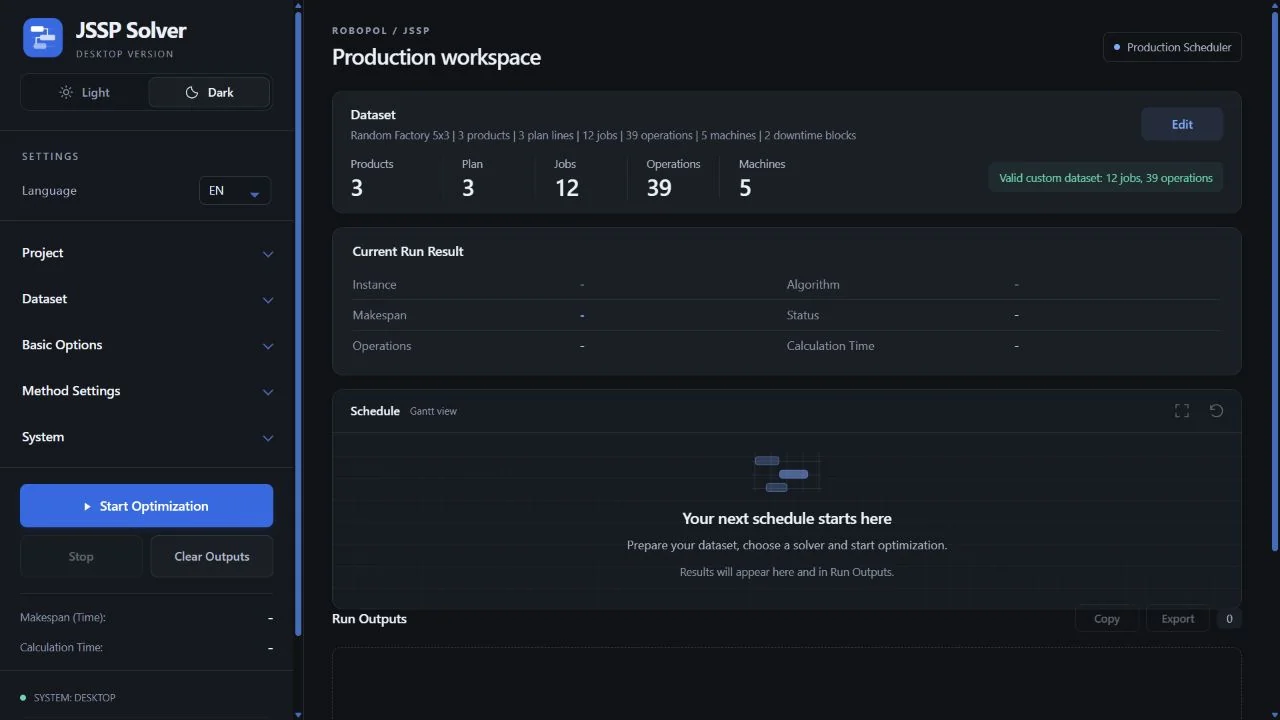
Screenshots show the current English interface. Choose a theme above and click an image to enlarge it. Snímky zobrazujú aktuálne anglické rozhranie. Hore vyberte režim a kliknutím obrázok zväčšite. Die Screenshots zeigen die aktuelle englische Oberfläche. Wählen Sie oben den Modus und vergrößern Sie Bilder per Klick.
Program overview
The program starts in Custom dataset mode. If the dataset is empty, validation warns that at least one job is required before solving. Editing dataset structures automatically switches the source to Custom dataset so the visible project and solver payload stay aligned.
Prehľad programu
Program štartuje v režime vlastných údajov. Ak je dataset prázdny, validácia upozorní, že pred výpočtom musí existovať aspoň jedna zákazka. Úprava datasetu automaticky aktivuje vlastný dataset, aby viditeľný projekt zodpovedal vstupu posielanému do riešiča.
Programmübersicht
Das Programm startet im Modus eigener Datensatz. Wenn der Datensatz leer ist, meldet die Validierung, dass vor der Berechnung mindestens ein Job vorhanden sein muss. Änderungen am Datensatz schalten automatisch auf eigener Datensatz, damit das sichtbare Projekt und die an den Solver gesendeten Daten zusammenpassen.
Online and desktop setup
The online version runs at scheduler.robopol.sk. Its System panel offers Windows and Linux downloads. For Windows, extract the RAR archive and run the contained EXE installer; Linux uses the .run installer. Online activation belongs to your browser session; desktop activation belongs to your PC. Both versions use the same factory-size limits and calculation features. All built-in examples are available in Demo; solver time and Refined profiles have no license caps.
- Start the installed RoboPol Production Scheduler application. Its launcher opens the browser interface and starts the local solver service.
- In the desktop version, calculations run on your computer; online calculations run on the server. Keep the application running while planning or solving; opening the HTML file directly does not start the solvers.
- The desktop package includes the Refined kernel, the native CP-SAT hybrid worker, and their runtime libraries. Keep these components together; use the installer to repair missing files.
- Internet access is needed for license activation, renewal when required, and update checks. The System panel shows the active edition.
- Use a desktop or notebook display for editing. Allow browser downloads for JSON, CSV, PNG and SVG exports.
- Keep one editing tab per project and save important work with Save As. Browser recovery is a convenience, not a replacement for saved project files.
Spustenie online a desktopovej aplikácie
Online verzia beží na scheduler.robopol.sk. Panel Systém ponúka stiahnutie verzií pre Windows a Linux. Vo Windows rozbaľte archív RAR a spustite inštalátor EXE vnútri; Linux používa inštalátor .run. Online aktivácia patrí vašej relácii v prehliadači, desktopová aktivácia vášmu počítaču. Obe verzie majú rovnaké limity veľkosti fabriky a výpočtové funkcie. Všetky vstavané príklady sú dostupné aj v Demo; čas výpočtu a profily Refined nemajú licenčné obmedzenia.
- Spustite nainštalovanú aplikáciu RoboPol Production Scheduler. Spúšťač otvorí rozhranie v prehliadači a spustí lokálnu službu riešiča.
- V desktopovej verzii prebiehajú výpočty na vašom počítači, v online verzii na serveri. Počas práce nechajte aplikáciu spustenú; samotné otvorenie súboru HTML riešiče nespustí.
- Desktopový balík obsahuje jadro Refined, natívny CP-SAT worker pre hybridné výpočty a potrebné knižnice. Tieto súčasti musia zostať spolu. Chýbajúce súbory obnovte inštalátorom.
- Internetové pripojenie je potrebné na aktiváciu licencie, jej prípadné obnovenie a kontrolu aktualizácií. Aktívnu edíciu uvidíte v paneli Systém.
- Na úpravu údajov používajte desktop alebo notebook. Povoľte sťahovanie súborov JSON, CSV, PNG a SVG.
- Jeden projekt upravujte v jednej karte. Dôležitú prácu uložte cez Uložiť ako; obnova konceptu v prehliadači nenahrádza uložený projekt.
Online- und Desktop-Start
Die Online-Version läuft unter scheduler.robopol.sk. Im Bereich System stehen Downloads für Windows und Linux bereit. Unter Windows entpacken Sie das RAR-Archiv und starten das enthaltene EXE-Installationsprogramm; Linux verwendet das .run-Installationsprogramm. Die Online-Aktivierung gehört zur Browsersitzung, die Desktop-Aktivierung zum PC. Beide Versionen haben dieselben Fabrikgrößenlimits und Berechnungsfunktionen. Alle integrierten Beispiele sind auch im Demo verfügbar; Rechenzeit und Refined-Profile unterliegen keinen Lizenzlimits.
- Starten Sie die installierte Anwendung RoboPol Production Scheduler. Der Starter öffnet die Browseroberfläche und startet den lokalen Solver-Dienst.
- In der Desktop-Version laufen Berechnungen auf Ihrem Computer, online auf dem Server. Lassen Sie die Anwendung während der Arbeit geöffnet; eine direkt geöffnete HTML-Datei startet keine Solver.
- Das Desktop-Paket enthält den Refined-Kern, den nativen CP-SAT-Hybrid-Worker und die erforderlichen Bibliotheken. Diese Komponenten gehören zusammen. Fehlende Dateien lassen sich mit dem Installationsprogramm wiederherstellen.
- Für Lizenzaktivierung, gegebenenfalls erforderliche Verlängerung und Update-Prüfungen wird Internet benötigt. Das System-Panel zeigt die aktive Edition.
- Zum Bearbeiten empfiehlt sich ein Desktop oder Notebook. Erlauben Sie Downloads für JSON-, CSV-, PNG- und SVG-Exporte.
- Bearbeiten Sie ein Projekt in einem Tab und speichern Sie wichtige Arbeit mit Speichern unter. Die Browser-Wiederherstellung ersetzt keine gespeicherte Projektdatei.
Project tools
| Tool | Use |
|---|---|
| New Project | Creates a clean custom project with an empty production board. |
| Open Project | Loads a browser-local JSON project. Runtime state can restore the last schedule and output cards. |
| Save As / Export JSON | Downloads the schema-versioned project model, including machines, products, plan lines, jobs, downtime, and optional runtime state. |
| Export PNG / Export SVG | Downloads the Gantt map image after a successful calculation. PNG is a bitmap of the current rendered canvas view; SVG is a scalable vector schedule map. |
| Restore Draft / Discard | Uses browser-local recovery when an unsaved custom project exists. |
Projektové nástroje
| Nástroj | Použitie |
|---|---|
| Nový projekt | Vytvorí čistý vlastný projekt s prázdnou výrobnou tabuľou. |
| Otvoriť projekt | Načíta lokálny JSON projekt. Stav behu vie obnoviť posledný harmonogram a výstupné karty. |
| Uložiť ako / Export JSON | Stiahne projektový model so strojmi, produktmi, plánom, zákazkami, odstávkami a voliteľným stavom behu. |
| Export PNG / Export SVG | Stiahne obrázok Ganttovho diagramu po úspešnom výpočte. PNG je bitmapa aktuálne vykresleného canvas pohľadu; SVG je škálovateľná vektorová mapa harmonogramu. |
| Obnoviť koncept / Zahodiť | Pracuje s lokálnou obnovou rozpracovaného vlastného projektu v prehliadači. |
Projektwerkzeuge
| Werkzeug | Verwendung |
|---|---|
| Neues Projekt | Erstellt ein sauberes eigenes Projekt mit leerer Produktionsübersicht. |
| Projekt öffnen | Lädt ein lokales JSON-Projekt aus dem Browser. Der Laufstatus kann den letzten Plan und die Ausgabekarten wiederherstellen. |
| Speichern unter / JSON exportieren | Lädt das schema-versionierte Projektmodell herunter, einschließlich Maschinen, Produkten, Planzeilen, Jobs, Stillstand und optionalem Laufstatus. |
| PNG exportieren / SVG exportieren | Lädt nach einer erfolgreichen Berechnung die Gantt-Karte herunter. PNG ist ein Bitmap der aktuellen Canvas-Ansicht; SVG ist eine skalierbare Vektorkarte des Plans. |
| Entwurf wiederherstellen / Verwerfen | Verwendet die lokale Browser-Wiederherstellung, wenn ein ungespeichertes eigenes Projekt vorhanden ist. |
System, license and sound
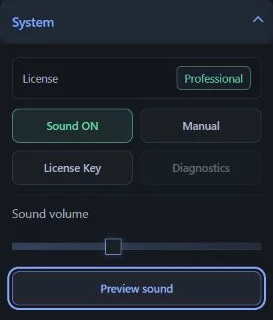
Open System in the left panel. These settings control the application and leave the production model unchanged.
| Control | What it does |
|---|---|
| License | Displays Demo or the active edition. License Key opens activation and deactivation controls. For desktop use, start the launcher to load the saved PC license. Online use activates the browser session. |
| Sound ON / OFF | Enables or mutes interface sounds. Muting immediately stops scheduled tones. The preference is saved. |
| Sound volume / Preview sound | Sets volume from 0 to 100% and plays the completion sound as a preview. Start, completion, error and cancellation have distinct cues. |
| While calculating | No repeating calculation sound is played. The Gantt area shows the algorithm, elapsed time and Stop calculation. |
| Manual | Opens this guide. Its language and light/dark controls are in the top bar. |
| Diagnostics | Currently disabled. It does not open a diagnostics screen. |
| Check Updates / E-shop | Online: downloads the Windows or Linux installer. Desktop: checks for updates. Shop opens the RoboPol shop. |
Systém, licencia a zvuky
V ľavom paneli otvorte Systém. Tieto nastavenia ovládajú aplikáciu a nemenia výrobný model.
| Ovládanie | Význam |
|---|---|
| Licencia | Zobrazuje Demo alebo aktívnu edíciu. Licenčný kľúč otvorí aktiváciu a deaktiváciu. Desktopovú aplikáciu spúšťajte spúšťačom, ktorý načíta licenciu počítača. Online sa aktivuje relácia v prehliadači. |
| Zvuk zapnutý / vypnutý | Zapína alebo vypína zvuky rozhrania. Vypnutie ihneď zastaví aj rozhraný tón. Voľba sa ukladá. |
| Hlasitosť zvuku / Prehrať ukážku | Nastaví hlasitosť od 0 do 100 % a prehrá ukážku zvuku dokončenia. Spustenie, dokončenie, chyba a zastavenie majú odlišné signály. |
| Počas výpočtu | Neprehráva sa opakujúci sa zvuk. V Ganttovom diagrame sa zobrazuje algoritmus, uplynutý čas a tlačidlo Zastaviť výpočet. |
| Manuál | Otvorí túto príručku. Jej jazyk a svetlý alebo tmavý režim sa prepínajú v hornej lište. |
| Diagnostika | Momentálne je neaktívna a neotvára diagnostickú obrazovku. |
| Skontrolovať aktualizácie / E-shop | Skontroluje dostupnosť novšieho desktopového balíka alebo otvorí obchod RoboPol. |
System, Lizenz und Klang
Öffnen Sie System im linken Panel. Diese Einstellungen betreffen die Anwendung und verändern das Produktionsmodell nicht.
| Bedienelement | Funktion |
|---|---|
| Lizenz | Zeigt Demo oder die aktive Edition. Lizenzschlüssel öffnet Aktivierung und Deaktivierung. Starten Sie die Desktop-Anwendung über den Starter, um die PC-Lizenz zu laden. Online wird die Browsersitzung aktiviert. |
| Ton an / aus | Aktiviert oder deaktiviert Oberflächenklänge. Stummschalten beendet auch bereits geplante Töne. Die Einstellung wird gespeichert. |
| Lautstärke / Klang testen | Stellt 0 bis 100 % ein und spielt den Abschlussklang vor. Start, Abschluss, Fehler und Abbruch haben unterschiedliche Signale. |
| Während der Berechnung | Es gibt keinen wiederholten Berechnungston. Im Gantt-Bereich erscheinen Algorithmus, verstrichene Zeit und Berechnung stoppen. |
| Handbuch | Öffnet diese Anleitung. Sprache und Hell-/Dunkelmodus lassen sich in der oberen Leiste ändern. |
| Diagnose | Derzeit deaktiviert; es wird keine Diagnoseansicht geöffnet. |
| Nach Updates suchen / E-shop | Prüft auf eine neuere Desktop-Version oder öffnet den RoboPol-Shop. |
Dataset model
Dátový model
Datenmodell
CSV import and dataset loading
CSV import is used when the production data already exists in ERP, MES, Excel, or another planning system. Import is section based: Machines, Products, Plan, and Jobs. Each import replaces only the selected section.
Dataset toolbar
| Button | What it imports or exports | When to use it |
|---|---|---|
| Import Machines / Export Machines | Machines and their downtime windows. | Use first, because product routes and jobs reference machine IDs. |
| Import Products / Export Products | Product routes and ordered route steps. | Use after Machines when you want to generate jobs from a production plan. |
| Import Plan / Export Plan | Production plan lines with quantities, batch sizes, due times, and priorities. | Use after Products, then open Dataset Editor and press Generate All Jobs. |
| Import Jobs / Export Jobs | Direct operation-level solver input. | Use when ERP/MES already exports jobs and operations and you do not need Product Routes plus Plan generation. |
| Random Factory | Synthetic machines, products, plan lines, downtime, and generated jobs. | Use for demos, training, screenshots, and quick validation of the workflow. |
Recommended import workflow
- Import Machines first, including planned downtime if needed.
- Import Products next. Product route steps must reference existing machine IDs.
- Import Plan. Plan lines must reference existing product IDs.
- Open Dataset Editor, review the plan, and click Generate All Jobs.
- Run the solver after the dataset status says the custom dataset is valid.
If your ERP/MES already exports exact operation-level jobs, you may skip Products and Plan and use Import Jobs directly. In that case, every operation row must reference an existing machine ID.
CSV import rules
- The first row must contain column names. Column order may follow the examples below.
- Use comma-separated CSV. Wrap values in quotes when they contain a comma, quote, or line break.
- Use a decimal point for decimal numbers, for example
1.2. Do not use a decimal comma such as1,2. - IDs are zero-based non-negative integers:
0,1,2. - Durations, quantities, and batch sizes must be positive numbers. Times are in the project time unit, normally minutes.
- Machine IDs used in Products or Jobs must exist in Machines. Product IDs used in Plan must exist in Products.
Machines CSV
Required columns: machine_id, machine_name. Downtime columns are optional, but if a downtime row is filled,
downtime_id, downtime_start, and downtime_duration are required. A machine with multiple downtime
windows appears on multiple rows with the same machine id.
machine_id,machine_name,machine_description,downtime_id,downtime_name,downtime_type,downtime_start,downtime_duration,downtime_hard,downtime_description
0,Laser cutter,Cuts sheet-metal blanks,0,Lens cleaning,maintenance,120,30,true,Planned optics cleaning
1,CNC mill,Milling and drilling station,,,,,,,
2,Assembly bench,Manual assembly station,,,,,,,
Product routes CSV
Required columns: product_id, product_name. A product that should generate jobs needs route rows with
route_step_id, machine_id, and duration. machine_name is informational;
the import uses machine_id.
product_id,product_name,product_description,route_step_id,route_step_name,machine_id,machine_name,duration,route_step_description
0,Control cabinet,Sheet-metal cabinet,0,Cut panels,0,Laser cutter,20,Cut outer panels
0,Control cabinet,Sheet-metal cabinet,1,Drill mounts,1,CNC mill,35,Drill and tap holes
0,Control cabinet,Sheet-metal cabinet,2,Assemble frame,2,Assembly bench,45,Manual assembly
1,Pump housing,Machined housing,0,Rough mill body,1,CNC mill,30,Rough machining
Production plan CSV
Required columns: plan_item_id, product_id, quantity, batch_size.
due_time is optional and must be non-negative when provided. priority is optional and defaults to 1.
The app expands each plan line into generated jobs by ceil(quantity / batch_size).
plan_item_id,plan_item_name,product_id,product_name,quantity,batch_size,due_time,priority,description
0,Cabinet order,0,Control cabinet,12,4,480,1.0,Customer order A
1,Pump order,1,Pump housing,10,5,420,1.2,Priority order
Jobs CSV
Import Jobs is the direct solver-input format. Use it when you already have operation-level jobs and do not want to generate them from
Product Routes and Production Plan. Required columns: job_id, job_name, operation_id,
machine_id, duration. One job uses multiple rows, one row per operation, ordered by operation_id.
job_id,job_name,job_description,product_id,plan_item_id,batch_quantity,release_time,due_time,priority,operation_id,operation_name,machine_id,machine_name,duration,operation_description
0,Cabinet batch 1,First cabinet batch,0,0,4,0,480,1.0,0,Cut panels,0,Laser cutter,20,Cut panels
0,Cabinet batch 1,First cabinet batch,0,0,4,0,480,1.0,1,Drill mounts,1,CNC mill,35,Drill mounts
0,Cabinet batch 1,First cabinet batch,0,0,4,0,480,1.0,2,Assemble frame,2,Assembly bench,45,Assembly
1,Pump batch 1,First pump batch,1,1,5,0,420,1.2,0,Rough mill body,1,CNC mill,30,Rough machining
CSV import a načítanie datasetu
CSV import použite vtedy, keď výrobné dáta už existujú v ERP, MES, Exceli alebo inom plánovacom systéme. Import je delený podľa sekcií: Stroje, Produkty, Plán a Zákazky. Každý import nahradí iba zvolenú sekciu.
Nástroje datasetu
| Tlačidlo | Čo importuje alebo exportuje | Kedy ho použiť |
|---|---|---|
| Import strojov / Export strojov | Stroje a ich odstávky. | Použite ako prvé, pretože produktové postupy a zákazky odkazujú na ID strojov. |
| Import produktov / Export produktov | Produktové postupy a zoradené kroky postupu. | Použite po strojoch, keď chcete generovať zákazky z výrobného plánu. |
| Import plánu / Export plánu | Riadky výrobného plánu s množstvom, veľkosťou dávky, termínom a prioritou. | Použite po produktoch, potom otvorte Editor údajov a stlačte Vygenerovať všetky zákazky. |
| Import zákaziek / Export zákaziek | Priamy operačný vstup pre riešič. | Použite, keď ERP/MES už exportuje zákazky a operácie a nepotrebuješ generovanie cez produktové postupy a plán. |
| Náhodná výroba | Syntetické stroje, produkty, plánové riadky, odstávky a generované zákazky. | Použite pre ukážky, tréning, snímky obrazovky a rýchlu kontrolu pracovného postupu. |
Odporúčaný postup importu
- Najprv importuj Stroje, vrátane plánovaných odstávok, ak ich potrebuješ.
- Potom importuj Produkty. Kroky produktového postupu musia odkazovať na existujúce ID strojov.
- Importuj Plán. Riadky plánu musia odkazovať na existujúce ID produktov.
- Otvorte Editor údajov, skontrolujte plán a kliknite Vygenerovať všetky zákazky.
- Riešič spusti až po tom, keď stav datasetu hlási, že vlastný dataset je platný.
Ak ERP/MES už exportuje presné zákazky po operáciách, môžete vynechať produkty a plán a použiť priamo Import zákaziek. Vtedy musí každý riadok operácie odkazovať na existujúce ID stroja.
Pravidlá CSV importu
- Prvý riadok musí obsahovať názvy stĺpcov. Poradie stĺpcov môže byť podľa príkladov nižšie.
- Použite CSV oddelené čiarkou. Hodnoty s čiarkou, úvodzovkou alebo zalomením riadku daj do úvodzoviek.
- Pri desatinných číslach používajte bodku, napríklad
1.2. Nepoužívaj desatinnú čiarku typu1,2. - ID sú nezáporné celé čísla od nuly:
0,1,2. - Trvania, množstvá a veľkosti dávok musia byť kladné čísla. Časy sú v časovej jednotke projektu, typicky minúty.
- ID strojov použité v produktoch alebo zákazkách musia existovať v strojoch. ID produktov použité v pláne musia existovať v produktoch.
CSV stroje
Povinné stĺpce: machine_id, machine_name. Stĺpce odstávky sú voliteľné, ale ak je odstávka vyplnená,
povinné sú downtime_id, downtime_start a downtime_duration. Stroj s viacerými odstávkami
je vo viacerých riadkoch s rovnakým ID stroja.
machine_id,machine_name,machine_description,downtime_id,downtime_name,downtime_type,downtime_start,downtime_duration,downtime_hard,downtime_description
0,Laser cutter,Cuts sheet-metal blanks,0,Lens cleaning,maintenance,120,30,true,Planned optics cleaning
1,CNC mill,Milling and drilling station,,,,,,,
2,Assembly bench,Manual assembly station,,,,,,,
CSV produktové postupy
Povinné stĺpce: product_id, product_name. Produkt, z ktorého chcete generovať zákazky,
potrebuje riadky s route_step_id, machine_id a duration.
machine_name je informačný; import používa machine_id.
product_id,product_name,product_description,route_step_id,route_step_name,machine_id,machine_name,duration,route_step_description
0,Control cabinet,Sheet-metal cabinet,0,Cut panels,0,Laser cutter,20,Cut outer panels
0,Control cabinet,Sheet-metal cabinet,1,Drill mounts,1,CNC mill,35,Drill and tap holes
0,Control cabinet,Sheet-metal cabinet,2,Assemble frame,2,Assembly bench,45,Manual assembly
1,Pump housing,Machined housing,0,Rough mill body,1,CNC mill,30,Rough machining
CSV výrobný plán
Povinné stĺpce: plan_item_id, product_id, quantity, batch_size.
due_time je voliteľné a ak je vyplnené, musí byť nezáporné. priority je voliteľné a predvolene je 1.
Aplikácia rozvinie každý riadok plánu na generované zákazky podľa ceil(quantity / batch_size).
plan_item_id,plan_item_name,product_id,product_name,quantity,batch_size,due_time,priority,description
0,Cabinet order,0,Control cabinet,12,4,480,1.0,Customer order A
1,Pump order,1,Pump housing,10,5,420,1.2,Priority order
CSV zákazky
Import zákaziek je priamy vstupný formát pre riešič. Použite ho vtedy, keď už máš zákazky po operáciách a nechceš ich generovať z produktových postupov
a výrobného plánu. Povinné stĺpce: job_id, job_name, operation_id,
machine_id, duration. Jedna zákazka má viac riadkov, jeden riadok na operáciu, zoradené podľa operation_id.
job_id,job_name,job_description,product_id,plan_item_id,batch_quantity,release_time,due_time,priority,operation_id,operation_name,machine_id,machine_name,duration,operation_description
0,Cabinet batch 1,First cabinet batch,0,0,4,0,480,1.0,0,Cut panels,0,Laser cutter,20,Cut panels
0,Cabinet batch 1,First cabinet batch,0,0,4,0,480,1.0,1,Drill mounts,1,CNC mill,35,Drill mounts
0,Cabinet batch 1,First cabinet batch,0,0,4,0,480,1.0,2,Assemble frame,2,Assembly bench,45,Assembly
1,Pump batch 1,First pump batch,1,1,5,0,420,1.2,0,Rough mill body,1,CNC mill,30,Rough machining
CSV-Import und Laden des Datensatzes
CSV-Import wird verwendet, wenn Produktionsdaten bereits aus ERP, MES, Excel oder einem anderen Planungssystem vorliegen. Der Import ist in Bereiche aufgeteilt: Maschinen, Produkte, Plan und Jobs. Jeder Import ersetzt nur den ausgewählten Bereich.
Datensatz-Werkzeuge
| Schaltfläche | Importiert oder exportiert | Wann verwenden |
|---|---|---|
| Maschinen importieren / Maschinen exportieren | Maschinen und ihre Stillstandsfenster. | Zuerst verwenden, weil Produktrouten und Jobs auf Maschinen-IDs verweisen. |
| Produkte importieren / Produkte exportieren | Produktrouten und geordnete Routenschritte. | Nach Maschinen verwenden, wenn Jobs aus einem Produktionsplan erzeugt werden sollen. |
| Plan importieren / Plan exportieren | Produktionsplanzeilen mit Mengen, Chargengrößen, Terminen und Prioritäten. | Nach Produkten verwenden, dann Datensatz-Editor öffnen und Alle Jobs generieren drücken. |
| Jobs importieren / Jobs exportieren | Direkter operationsbasierter Solver-Eingang. | Verwenden, wenn ERP/MES Jobs und Operationen bereits exakt exportiert und keine Generierung über Produktrouten und Plan nötig ist. |
| Zufallsfabrik | Synthetische Maschinen, Produkte, Planzeilen, Stillstand und generierte Jobs. | Für Demos, Schulung, Screenshots und schnelle Workflow-Kontrolle. |
Empfohlener Importablauf
- Importiere zuerst Maschinen, bei Bedarf inklusive geplanter Stillstände.
- Importiere danach Produkte. Schritte der Produktroute müssen auf vorhandene Maschinen-IDs verweisen.
- Importiere Plan. Planzeilen müssen auf vorhandene Produkt-IDs verweisen.
- Öffne den Datensatz-Editor, prüfe den Plan und klicke Alle Jobs generieren.
- Starte den Solver erst, wenn der Datensatzstatus meldet, dass der eigene Datensatz gültig ist.
Wenn ERP/MES bereits exakte Jobs auf Operationsebene exportiert, kannst du Produkte und Plan überspringen und direkt Jobs importieren verwenden. In diesem Fall muss jede Operationszeile auf eine vorhandene Maschinen-ID verweisen.
Regeln für CSV-Dateien
- Die erste Zeile muss Spaltennamen enthalten. Die Spaltenreihenfolge kann den Beispielen unten folgen.
- CSV verwendet Kommas als Trennzeichen. Werte mit Komma, Anführungszeichen oder Zeilenumbruch müssen in Anführungszeichen stehen.
- Für Dezimalzahlen wird ein Punkt verwendet, zum Beispiel
1.2. Kein Dezimalkomma wie1,2verwenden. - IDs sind nullbasierte nichtnegative Ganzzahlen:
0,1,2. - Dauern, Mengen und Chargengrößen müssen positive Zahlen sein. Zeiten stehen in der Projektzeiteinheit, normalerweise Minuten.
- Maschinen-IDs in Produkten oder Jobs müssen in Maschinen existieren. Produkt-IDs im Plan müssen in Produkten existieren.
Maschinen CSV
Pflichtspalten: machine_id, machine_name. Stillstandsspalten sind optional. Wenn eine Stillstandszeile gefüllt ist,
sind downtime_id, downtime_start und downtime_duration erforderlich. Eine Maschine mit mehreren
Stillständen steht in mehreren Zeilen mit derselben Maschinen-ID.
machine_id,machine_name,machine_description,downtime_id,downtime_name,downtime_type,downtime_start,downtime_duration,downtime_hard,downtime_description
0,Laser cutter,Cuts sheet-metal blanks,0,Lens cleaning,maintenance,120,30,true,Planned optics cleaning
1,CNC mill,Milling and drilling station,,,,,,,
2,Assembly bench,Manual assembly station,,,,,,,
Produktrouten CSV
Pflichtspalten: product_id, product_name. Ein Produkt, aus dem Jobs generiert werden sollen,
braucht Zeilen mit route_step_id, machine_id und duration.
machine_name ist nur informativ; der Import verwendet machine_id.
product_id,product_name,product_description,route_step_id,route_step_name,machine_id,machine_name,duration,route_step_description
0,Control cabinet,Sheet-metal cabinet,0,Cut panels,0,Laser cutter,20,Cut outer panels
0,Control cabinet,Sheet-metal cabinet,1,Drill mounts,1,CNC mill,35,Drill and tap holes
0,Control cabinet,Sheet-metal cabinet,2,Assemble frame,2,Assembly bench,45,Manual assembly
1,Pump housing,Machined housing,0,Rough mill body,1,CNC mill,30,Rough machining
Produktionsplan CSV
Pflichtspalten: plan_item_id, product_id, quantity, batch_size.
due_time ist optional und muss, wenn angegeben, nichtnegativ sein. priority ist optional und hat den Standardwert 1.
Die Anwendung erweitert jede Planzeile zu generierten Jobs nach ceil(quantity / batch_size).
plan_item_id,plan_item_name,product_id,product_name,quantity,batch_size,due_time,priority,description
0,Cabinet order,0,Control cabinet,12,4,480,1.0,Customer order A
1,Pump order,1,Pump housing,10,5,420,1.2,Priority order
Jobs CSV
Jobs importieren ist das direkte Solver-Eingabeformat. Verwende es, wenn Jobs bereits auf Operationsebene vorliegen und nicht aus Produktrouten
und Produktionsplan generiert werden sollen. Pflichtspalten: job_id, job_name, operation_id,
machine_id, duration. Ein Job besteht aus mehreren Zeilen, eine Zeile pro Operation, geordnet nach operation_id.
job_id,job_name,job_description,product_id,plan_item_id,batch_quantity,release_time,due_time,priority,operation_id,operation_name,machine_id,machine_name,duration,operation_description
0,Cabinet batch 1,First cabinet batch,0,0,4,0,480,1.0,0,Cut panels,0,Laser cutter,20,Cut panels
0,Cabinet batch 1,First cabinet batch,0,0,4,0,480,1.0,1,Drill mounts,1,CNC mill,35,Drill mounts
0,Cabinet batch 1,First cabinet batch,0,0,4,0,480,1.0,2,Assemble frame,2,Assembly bench,45,Assembly
1,Pump batch 1,First pump batch,1,1,5,0,420,1.2,0,Rough mill body,1,CNC mill,30,Rough machining
Dataset Editor
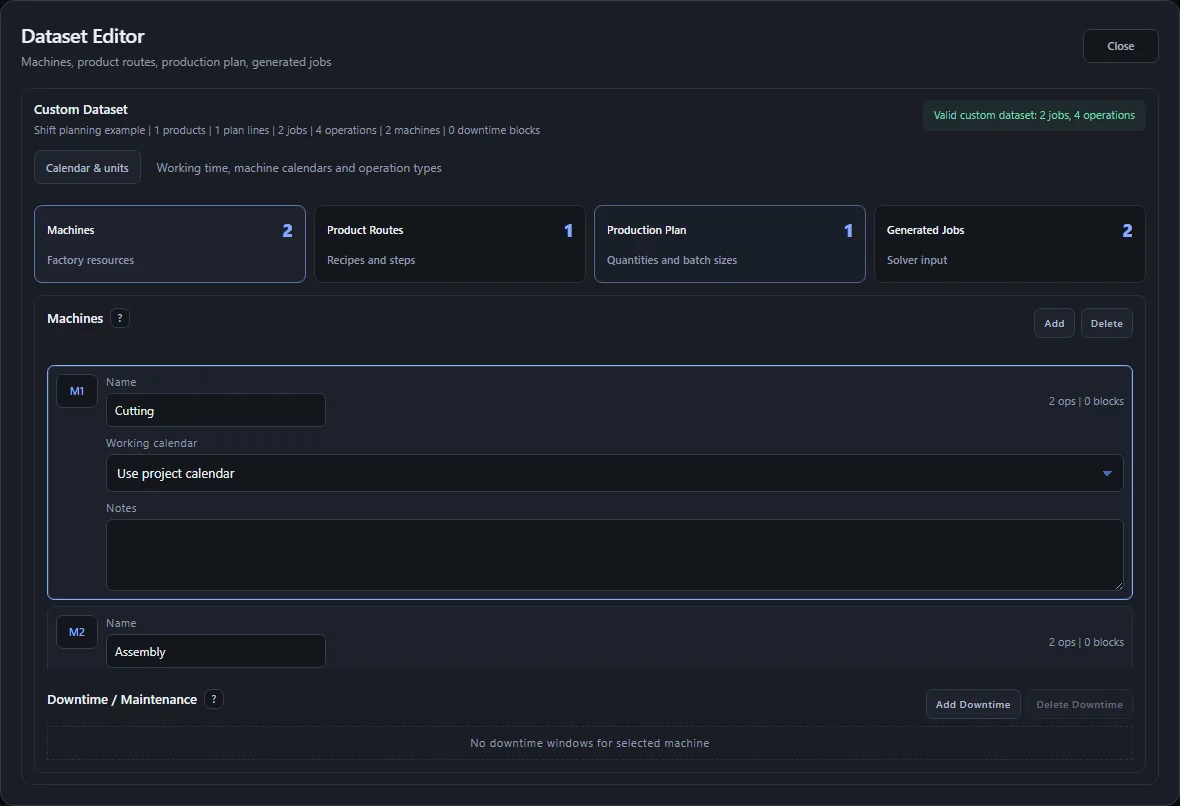
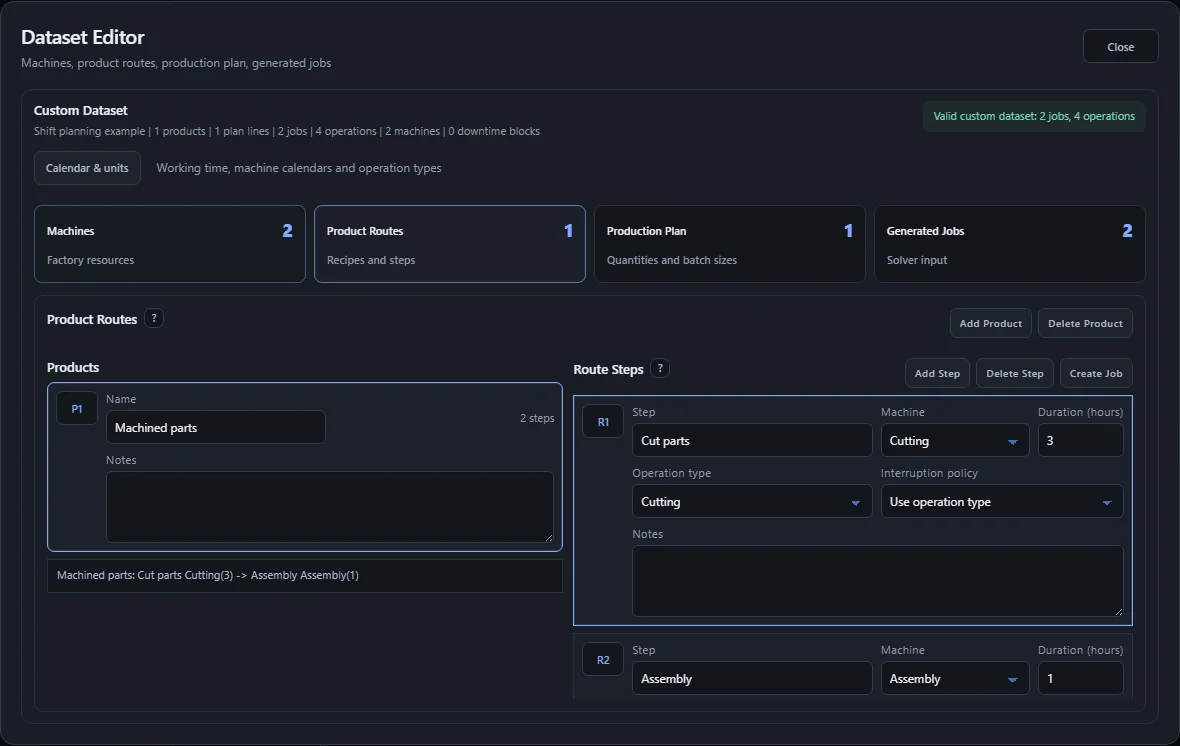
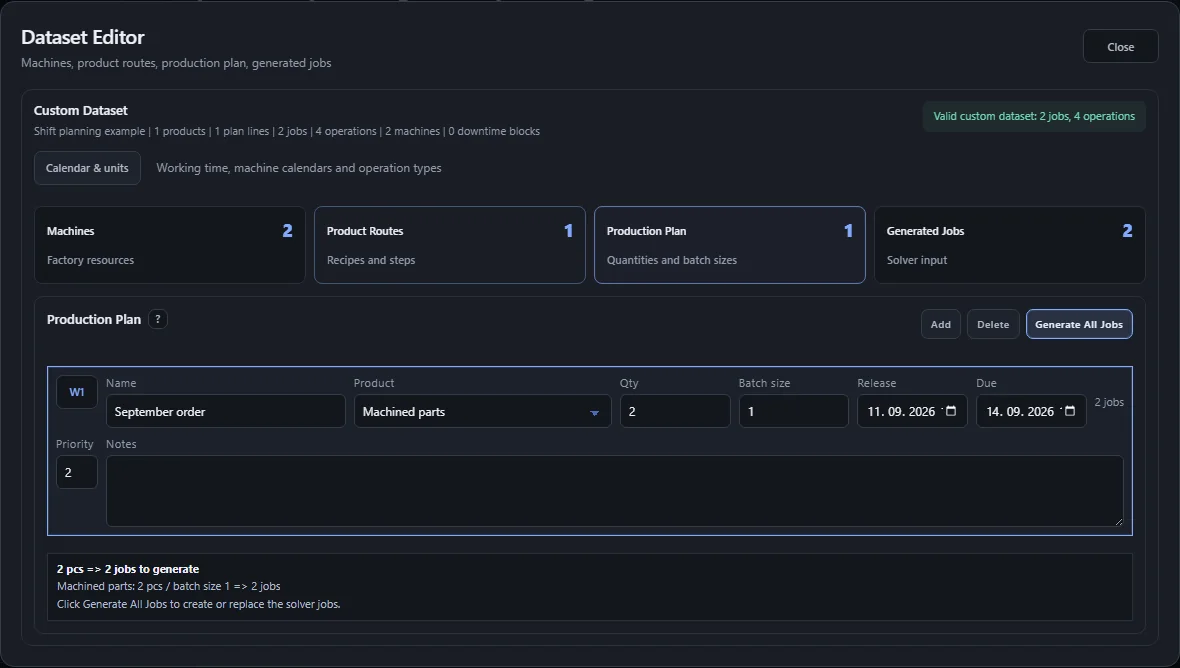
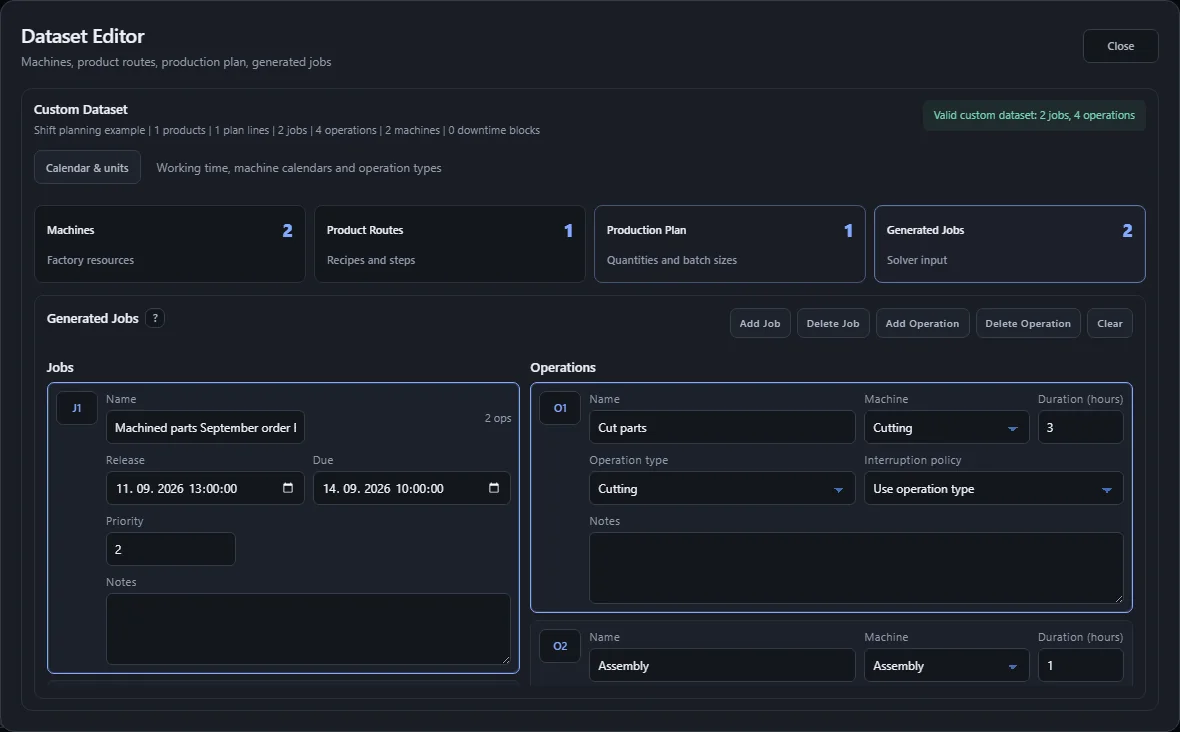
Press Edit in the Dataset card to open the Dataset Editor. The section cards switch between Machines, Product Routes, Production Plan, and Generated Jobs. Only one detail panel is active at a time to keep editing compact.
- Machines define factory resources and their downtime windows.
- Product Routes define reusable production recipes.
- Production Plan defines quantities, batch sizes, due times, and priorities.
- Generated Jobs is the exact operation-level solver input.
Editor actions
| Area | Main actions | What to check |
|---|---|---|
| Machines | Add, Delete, Add Downtime, Delete Downtime. | Every referenced machine must exist. Deleting a machine remaps affected route steps and operations to another available machine. |
| Product Routes | Add Product, Delete Product, Add Step, Delete Step, Create Job. | Route steps must be ordered, each with a machine and positive duration. Create Job copies the selected product route into one solver job. |
| Production Plan | Add, Delete, Generate All Jobs. | Each line needs a product, quantity, and batch size. Generate All Jobs replaces the complete Generated Jobs list with jobs expanded from every line in the current plan. |
| Generated Jobs | Add Job, Delete Job, Add Operation, Delete Operation, Clear. | This is the final solver input. Edit job due/priority here for one-off exceptions before pressing Start. |
Production Plan field values
| Field | Accepted value | Meaning |
|---|---|---|
| Qty | Positive whole number: 1, 12, 250. No decimal comma. |
Total requested quantity for the selected product line. |
| Batch size | Positive whole number: 1, 4, 10. |
How many pieces one generated job represents. Qty 1 and Batch size 1 means one piece and one generated job. Qty 12 and Batch size 4 creates three generated jobs. |
| Due | Empty or a non-negative number in the project time unit, normally minutes: 480. |
Target completion time for generated jobs from this plan line. Empty Due means no due-date penalty. Both solvers use it for weighted tardiness. |
| Priority | Positive number, decimal point allowed: 1, 1.2, 2. Default is 1. |
Weight of lateness when the CP-SAT weighted-tardiness objective is selected. Priority 2 makes one late minute twice as expensive as priority 1. |
In Generated Jobs, Due and Priority use the same number rules. Edit them there only for individual exceptions after jobs are generated. Pressing Generate All Jobs again recreates the complete generated job list from the Production Plan values. The job count shown in Production Plan rows is only a preview; it does not create solver jobs until Generate All Jobs is pressed.
The small ? buttons in the editor show inline help for the current card. They are useful when checking whether a field belongs to the planning layer or to the exact solver input.
Editor údajov
Kliknite Upraviť v karte Dataset. Sekčné karty prepínajú Stroje, Produktové postupy, Výrobný plán a Generované zákazky. Aktívny je vždy jeden detailný panel, aby bol editor prehľadný.
- Stroje definujú výrobné zdroje a ich odstávky.
- Produktové postupy definujú opakovateľné výrobné recepty.
- Výrobný plán definuje množstvá, veľkosti dávok, termíny a priority.
- Generované zákazky sú presný operačný vstup pre riešič.
Akcie editora
| Časť | Hlavné akcie | Čo skontrolovať |
|---|---|---|
| Stroje | Pridať, Vymazať, Pridať odstávku, Vymazať odstávku. | Každý referencovaný stroj musí existovať. Vymazanie stroja premapuje dotknuté kroky postupu a operácie na iný dostupný stroj. |
| Produktové postupy | Pridať produkt, Vymazať produkt, Pridať krok, Vymazať krok, Vytvoriť zákazku. | Kroky postupu musia byť zoradené, každý so strojom a kladným trvaním. Vytvoriť zákazku skopíruje vybraný produktový postup do jednej zákazky pre riešič. |
| Výrobný plán | Pridať, Vymazať, Vygenerovať všetky zákazky. | Každý riadok potrebuje produkt, množstvo a veľkosť dávky. Vygenerovať všetky zákazky nahradí celý zoznam generovaných zákaziek zákazkami rozvinutými zo všetkých riadkov aktuálneho plánu. |
| Generované zákazky | Pridať zákazku, Vymazať zákazku, Pridať operáciu, Vymazať operáciu, Vyčistiť. | Toto je finálny vstup pre riešič. Termín a prioritu tu upravuj pre jednorazové výnimky pred stlačením Spustiť. |
Hodnoty polí vo výrobnom pláne
| Pole | Povolený tvar | Význam |
|---|---|---|
| Množstvo | Kladné celé číslo: 1, 12, 250. Bez desatinnej čiarky. |
Celkové požadované množstvo vybraného produktu v tomto riadku plánu. |
| Veľkosť dávky | Kladné celé číslo: 1, 4, 10. |
Koľko kusov predstavuje jedna vygenerovaná zákazka. Množstvo 1 a Veľkosť dávky 1 znamená jeden kus a jednu vygenerovanú zákazku. Množstvo 12 a Veľkosť dávky 4 vytvorí tri zákazky. |
| Termín | Prázdne alebo nezáporné číslo v časovej jednotke projektu, typicky minúty: 480. |
Cieľový čas dokončenia zákaziek z tohto riadku plánu. Prázdny termín znamená, že zákazka nemá penalizáciu za omeškanie. CP-SAT ho používa pri váženom omeškaní podľa termínu. |
| Priorita | Kladné číslo, desatinná bodka je povolená: 1, 1.2, 2. Predvolená hodnota je 1. |
Váha omeškania pri cieli Vážené omeškanie podľa termínu v oboch riešičoch. Priorita 2 robí jednu minútu omeškania dvakrát drahšou ako priorita 1. |
V časti Generované zákazky majú Termín a Priorita rovnaké pravidlá čísel. Upravuj ich tam iba pre individuálne výnimky po vygenerovaní zákaziek. Opätovné stlačenie Vygenerovať všetky zákazky vytvorí celý zoznam generovaných zákaziek znova podľa hodnôt vo výrobnom pláne. Počet zákaziek zobrazený v riadku výrobného plánu je iba náhľad; reálne zákazky pre riešič vzniknú až po stlačení Vygenerovať všetky zákazky.
Malé tlačidlá ? v editore zobrazujú krátku pomoc k aktuálnej karte. Pomáhajú rozlíšiť, či pole patrí do plánovacej vrstvy alebo priamo do vstupu riešiča.
Datensatz-Editor
Klicke in der Datensatz-Karte auf Bearbeiten, um den Datensatz-Editor zu öffnen. Die Bereichskarten wechseln zwischen Maschinen, Produktarbeitsplänen, Produktionsplan und Generierten Jobs. Es ist immer nur ein Detailpanel aktiv, damit die Bearbeitung übersichtlich bleibt.
- Maschinen definieren Fertigungsressourcen und ihre Stillstandsfenster.
- Produktarbeitspläne definieren wiederverwendbare Fertigungsrezepte.
- Produktionsplan definiert Mengen, Chargengrößen, Termine und Prioritäten.
- Generierte Jobs sind der genaue operationsbasierte Eingang für den Solver.
Editor-Aktionen
| Bereich | Hauptaktionen | Worauf prüfen |
|---|---|---|
| Maschinen | Hinzufügen, Löschen, Stillstand hinzufügen, Stillstand löschen. | Jede referenzierte Maschine muss existieren. Beim Löschen einer Maschine werden betroffene Routenschritte und Operationen auf eine andere verfügbare Maschine umgelegt. |
| Produktarbeitspläne | Produkt hinzufügen, Produkt löschen, Schritt hinzufügen, Schritt löschen, Job erstellen. | Routenschritte müssen geordnet sein, jeder mit Maschine und positiver Dauer. Job erstellen kopiert den ausgewählten Produktarbeitsplan in einen Solver-Job. |
| Produktionsplan | Hinzufügen, Löschen, Alle Jobs generieren. | Jede Zeile braucht Produkt, Menge und Chargengröße. Alle Jobs generieren ersetzt die vollständige Liste generierter Jobs durch Jobs aus allen Zeilen des aktuellen Plans. |
| Generierte Jobs | Job hinzufügen, Job löschen, Operation hinzufügen, Operation löschen, Leeren. | Das ist der finale Solver-Eingang. Termin und Priorität werden hier für einmalige Ausnahmen angepasst, bevor Start gedrückt wird. |
Feldwerte im Produktionsplan
| Feld | Erlaubter Wert | Bedeutung |
|---|---|---|
| Menge | Positive Ganzzahl: 1, 12, 250. Kein Dezimalkomma. |
Gesamte angeforderte Menge des ausgewählten Produkts in dieser Planzeile. |
| Chargengröße | Positive Ganzzahl: 1, 4, 10. |
Wie viele Stück ein generierter Job repräsentiert. Menge 1 und Chargengröße 1 bedeutet ein Stück und einen generierten Job. Menge 12 und Chargengröße 4 erzeugt drei Jobs. |
| Fällig | Leer oder eine nichtnegative Zahl in der Projektzeiteinheit, normalerweise Minuten: 480. |
Ziel-Fertigstellungszeit der Jobs aus dieser Planzeile. Leer bedeutet keine Verspätungsstrafe. CP-SAT verwendet den Wert für gewichtete Terminverspätung. |
| Priorität | Positive Zahl, Dezimalpunkt erlaubt: 1, 1.2, 2. Standardwert ist 1. |
Gewicht der Verspätung beim CP-SAT-Ziel gewichtete Terminverspätung. Priorität 2 macht eine verspätete Minute doppelt so teuer wie Priorität 1. |
In Generierte Jobs verwenden Fällig und Priorität dieselben Zahlenregeln. Passe sie dort nur für einzelne Ausnahmen nach der Generierung an. Wenn Alle Jobs generieren erneut gedrückt wird, wird die vollständige Liste generierter Jobs wieder aus den Werten im Produktionsplan erstellt. Die Jobanzahl in den Produktionsplanzeilen ist nur eine Vorschau; echte Solver-Jobs entstehen erst nach dem Klick auf Alle Jobs generieren.
Die kleinen ?-Schaltflächen im Editor zeigen kurze Hilfe zur aktuellen Karte. Sie helfen zu erkennen, ob ein Feld zur Planungsebene oder direkt zum Solver-Eingang gehört.
Machines and downtime
Machine downtime blocks a selected machine for a fixed time interval. Use it for planned maintenance, technical breaks, repairs, inspections, calibration, cleaning, or known outages. Both Robopol Refined and CP-SAT treat hard downtime as occupied machine time, so no operation may overlap it.
Manual setup in Dataset Editor
- Open Dataset Editor and select Machines.
- Select the machine card, for example Laser cutter or CNC mill.
- Click Add Downtime in the Downtime / Maintenance area.
- Choose a type such as maintenance, technical break, repair, or unexpected outage.
- Enter Start and Duration in the same time unit as operations, usually minutes.
- Keep Hard enabled. Soft downtime is visible as a future concept but is not supported by the current solver path.
- Optionally enter a name and notes so the exported schedule explains why the machine is blocked.
Example
If CNC mill has maintenance from minute 120 for 30 minutes, set Start = 120 and Duration = 30.
The blocked interval is 120-150. The Gantt map draws this as a red downtime block, and schedule CSV export includes a downtime row.
Validation rules
- Downtime start must be a non-negative integer.
- Downtime duration must be positive and resolve to whole seconds in the selected unit.
- Downtime IDs must be unique inside the selected machine.
- Soft downtime is rejected; current downtime must remain hard.
Stroje a odstávky
Odstávka stroja zablokuje vybraný stroj na pevný časový interval. Použite ju pre plánovanú údržbu, technické prestávky, opravy, kontroly, kalibráciu, čistenie alebo známe výpadky. Robopol Refined aj CP-SAT berú tvrdú odstávku ako obsadený čas stroja, takže žiadna operácia ho nesmie prekrývať.
Ručné nastavenie v Editore údajov
- Otvorte Editor údajov a vyberte Stroje.
- Vyberte kartu stroja, napríklad Laser cutter alebo CNC mill.
- V časti Odstávka / údržba kliknite Pridať odstávku.
- Zvoľte typ, napríklad údržba, technická prestávka, oprava alebo nečakaný výpadok.
- Zadaj Začiatok a Trvanie v rovnakej časovej jednotke ako operácie, typicky minúty.
- Nechaj zapnuté Tvrdá. Mäkká odstávka je viditeľná ako budúci koncept, ale aktuálna cesta riešiča pracuje s tvrdými odstávkami.
- Voliteľne zadaj názov a poznámku, aby exportovaný harmonogram vysvetľoval, prečo je stroj blokovaný.
Príklad
Ak má CNC mill údržbu od minúty 120 na 30 minút, nastavte začiatok = 120 a trvanie = 30.
Blokovaný interval je 120-150. Ganttov diagram ho vykreslí ako červený blok odstávky a CSV export harmonogramu obsahuje riadok odstávky.
Validačné pravidlá
- Začiatok odstávky musí byť nezáporné celé číslo.
- Trvanie odstávky musí byť kladné celé číslo.
- ID odstávok musia byť unikátne v rámci vybraného stroja.
- Aktuálne odstávky musia byť tvrdé.
Maschinen und Stillstand
Maschinenstillstand blockiert eine ausgewählte Maschine für ein festes Zeitfenster. Verwende ihn für geplante Wartung, technische Pausen, Reparaturen, Kontrollen, Kalibrierung, Reinigung oder bekannte Ausfälle. Robopol Refined und CP-SAT behandeln harten Stillstand als belegte Maschinenzeit; keine Operation darf ihn überlappen.
Manuelle Einrichtung im Datensatz-Editor
- Öffne den Datensatz-Editor und wähle Maschinen.
- Wähle die Maschinenkarte, zum Beispiel Laser cutter oder CNC mill.
- Klicke im Bereich Stillstand / Wartung auf Stillstand hinzufügen.
- Wähle einen Typ, zum Beispiel Wartung, technische Pause, Reparatur oder unerwarteter Ausfall.
- Trage Start und Dauer in derselben Zeiteinheit wie die Operationen ein, normalerweise Minuten.
- Lasse Hart aktiviert. Weicher Stillstand ist als zukünftiges Konzept sichtbar, der aktuelle Solver-Weg arbeitet mit hartem Stillstand.
- Optional kannst du Name und Notizen ergänzen, damit der exportierte Plan erklärt, warum die Maschine blockiert ist.
Beispiel
Wenn CNC mill ab Minute 120 für 30 Minuten Wartung hat, setze Start = 120 und Duration = 30.
Das blockierte Fenster ist 120-150. Die Gantt-Karte zeichnet es als roten Stillstandsblock, und der Plan-CSV-Export enthält eine Stillstandszeile.
Validierungsregeln
- Der Stillstandsbeginn muss eine nichtnegative Ganzzahl sein.
- Die Stillstandsdauer muss eine positive Ganzzahl sein.
- Stillstands-IDs müssen innerhalb der ausgewählten Maschine eindeutig sein.
- Aktuelle Stillstandsfenster werden als harter Stillstand geplant.
Production plan and generated jobs
Product Routes and Production Plan are planner-facing layers. The solver does not solve product quantities directly; it solves generated fixed-machine jobs. Press Generate All Jobs after the plan is ready. Changing plan fields does not regenerate jobs automatically; the visible job count in a plan row is only a preview.
Generation workflow
- Define the product route first: ordered operations, fixed machine for each operation, and operation duration for one generated job/batch.
- Create a Production Plan line: choose product, quantity, batch size, due, and priority.
- Click Generate All Jobs. The app expands every Production Plan line into concrete jobs and copies the product route operations into each job.
- Run the solver only after Generated Jobs exist. The solver input is Generated Jobs, not the Production Plan table itself.
- If you change quantity, batch size, product route, due, or priority in the Production Plan, click Generate All Jobs again.
Generate All Jobs is a bulk action for the whole Production Plan, not a one-job action. It replaces the current Generated Jobs list. Manual edits made inside Generated Jobs are useful for exceptions, but they can be overwritten by the next Generate All Jobs action.
Product routes
- A product route is an ordered recipe: step 0, step 1, step 2, and so on.
- Each step needs a machine and duration.
- The order is preserved in every job generated from that product.
Production plan lines
- Quantity is the total requested amount.
- Batch size controls how many pieces one generated job represents.
- Due is the target completion time for generated jobs from that plan line.
- Priority is used by Due-date weighted tardiness in both solvers. Higher priority makes lateness more expensive.
Generated jobs
For each plan line, the application creates ceil(quantity / batch_size) jobs. Example: quantity 12
and batch size 4 creates 3 generated jobs. The last batch may be smaller when the quantity is not divisible
by batch size.
You can review and manually adjust Generated Jobs before solving. Use this for exceptions, one-off rework, changed duration, or a job that must use a different fixed machine.
Výrobný plán a generované zákazky
Produktové postupy a výrobný plán sú vrstvy pre plánovača. Riešič neoptimalizuje množstvá priamo; rieši vygenerované zákazky s pevne zadanými strojmi. Po dokončení plánu kliknite Vygenerovať všetky zákazky. Zmena polí vo výrobnom pláne negeneruje zákazky automaticky; viditeľný počet zákaziek v riadku plánu je iba náhľad.
Ako vzniknú generované zákazky
- Najprv definuj produktový postup: poradie operácií, pevný stroj pre každú operáciu a trvanie operácie pre jednu vygenerovanú zákazku/dávku.
- Vo výrobnom pláne vytvorte riadok: vyberte produkt, množstvo, veľkosť dávky, termín a prioritu.
- Kliknite Vygenerovať všetky zákazky. Aplikácia rozvinie každý riadok výrobného plánu na konkrétne zákazky a do každej zákazky skopíruje operácie z produktového postupu.
- Solver spúšťaj až vtedy, keď existujú generované zákazky. Vstupom pre solver sú generované zákazky, nie samotná tabuľka výrobného plánu.
- Ak vo výrobnom pláne zmeníš množstvo, veľkosť dávky, produktový postup, termín alebo prioritu, kliknite znova Vygenerovať všetky zákazky.
Vygenerovať všetky zákazky je hromadná akcia pre celý výrobný plán, nie akcia pre jednu zákazku. Nahradí aktuálny zoznam Generovaných zákaziek. Ručné úpravy v Generovaných zákazkách sú vhodné na výnimky, ale ďalšie stlačenie Vygenerovať všetky zákazky ich môže prepísať.
Produktové trasy
- Produktová trasa je zoradený recept: krok 0, krok 1, krok 2 atď.
- Každý krok potrebuje stroj a trvanie.
- Poradie krokov sa zachová v každej úlohe vygenerovanej z daného produktu.
Riadky výrobného plánu
- Množstvo je celkové požadované množstvo.
- Veľkosť dávky určuje, koľko kusov reprezentuje jedna vygenerovaná zákazka.
- Termín je cieľový čas dokončenia pre zákazky vytvorené z daného riadku plánu.
- Priorita používa CP-SAT pri cieli váženého omeškania podľa termínu. Vyššia priorita robí oneskorenie drahším.
Generované zákazky
Pre každý riadok plánu aplikácia vytvorí ceil(quantity / batch_size) zákaziek. Príklad: množstvo 12
a veľkosť dávky 4 vytvorí 3 generované zákazky. Posledná dávka môže byť menšia, ak množstvo nie je deliteľné veľkosťou dávky.
Generované zákazky môžete pred výpočtom skontrolovať a ručne upraviť. Použite to pre výnimky, jednorazovú prerábku, zmenené trvanie alebo zákazku, ktorá musí ísť na iný pevný stroj.
Produktionsplan und generierte Jobs
Produktarbeitspläne und Produktionsplan sind Planungsebenen für den Anwender. Der Solver optimiert Produktmengen nicht direkt; er plant die daraus erzeugten Jobs mit festen Maschinen. Klicke nach Fertigstellung des Plans auf Alle Jobs generieren. Änderungen an Planfeldern erzeugen Jobs nicht automatisch neu; die sichtbare Jobanzahl in einer Planzeile ist nur eine Vorschau.
Wie generierte Jobs entstehen
- Zuerst den Produktarbeitsplan definieren: Reihenfolge der Operationen, feste Maschine pro Operation und Operationsdauer für einen generierten Job/eine Charge.
- Im Produktionsplan eine Zeile anlegen: Produkt, Menge, Chargengröße, Termin und Priorität wählen.
- Auf Alle Jobs generieren klicken. Die Anwendung erweitert jede Produktionsplanzeile zu konkreten Jobs und kopiert die Operationen aus dem Produktarbeitsplan in jeden Job.
- Den Solver erst starten, wenn generierte Jobs vorhanden sind. Solver-Eingabe sind die generierten Jobs, nicht die Produktionsplantabelle selbst.
- Wenn Menge, Chargengröße, Produktarbeitsplan, Termin oder Priorität im Produktionsplan geändert wird, erneut Alle Jobs generieren klicken.
Alle Jobs generieren ist eine Sammelaktion für den ganzen Produktionsplan, keine Aktion für einen einzelnen Job. Sie ersetzt die aktuelle Liste der generierten Jobs. Manuelle Änderungen in Generierte Jobs sind für Ausnahmen nützlich, können aber beim nächsten Alle Jobs generieren überschrieben werden.
Produktrouten
- Eine Produktroute ist ein geordnetes Rezept: Schritt 0, Schritt 1, Schritt 2 usw.
- Jeder Schritt braucht eine Maschine und eine Dauer.
- Die Reihenfolge bleibt in jedem Job erhalten, der aus diesem Produkt generiert wird.
Zeilen des Produktionsplans
- Menge ist die gesamte angeforderte Menge.
- Chargengröße legt fest, wie viele Stück ein generierter Job repräsentiert.
- Fällig ist die Ziel-Fertigstellungszeit für Jobs aus dieser Planzeile.
- Priorität wird von CP-SAT beim Ziel gewichtete Terminverspätung verwendet. Höhere Priorität macht Verspätung teurer.
Generierte Jobs
Für jede Planzeile erzeugt die Anwendung ceil(quantity / batch_size) Jobs. Beispiel: Menge 12
und Chargengröße 4 erzeugen 3 generierte Jobs. Die letzte Charge kann kleiner sein, wenn die Menge nicht durch die Chargengröße teilbar ist.
Generierte Jobs können vor der Berechnung geprüft und manuell angepasst werden. Nutze das für Ausnahmen, einmalige Nacharbeit, geänderte Dauer oder einen Job, der auf eine andere feste Maschine muss.
Production dates, shifts and priorities
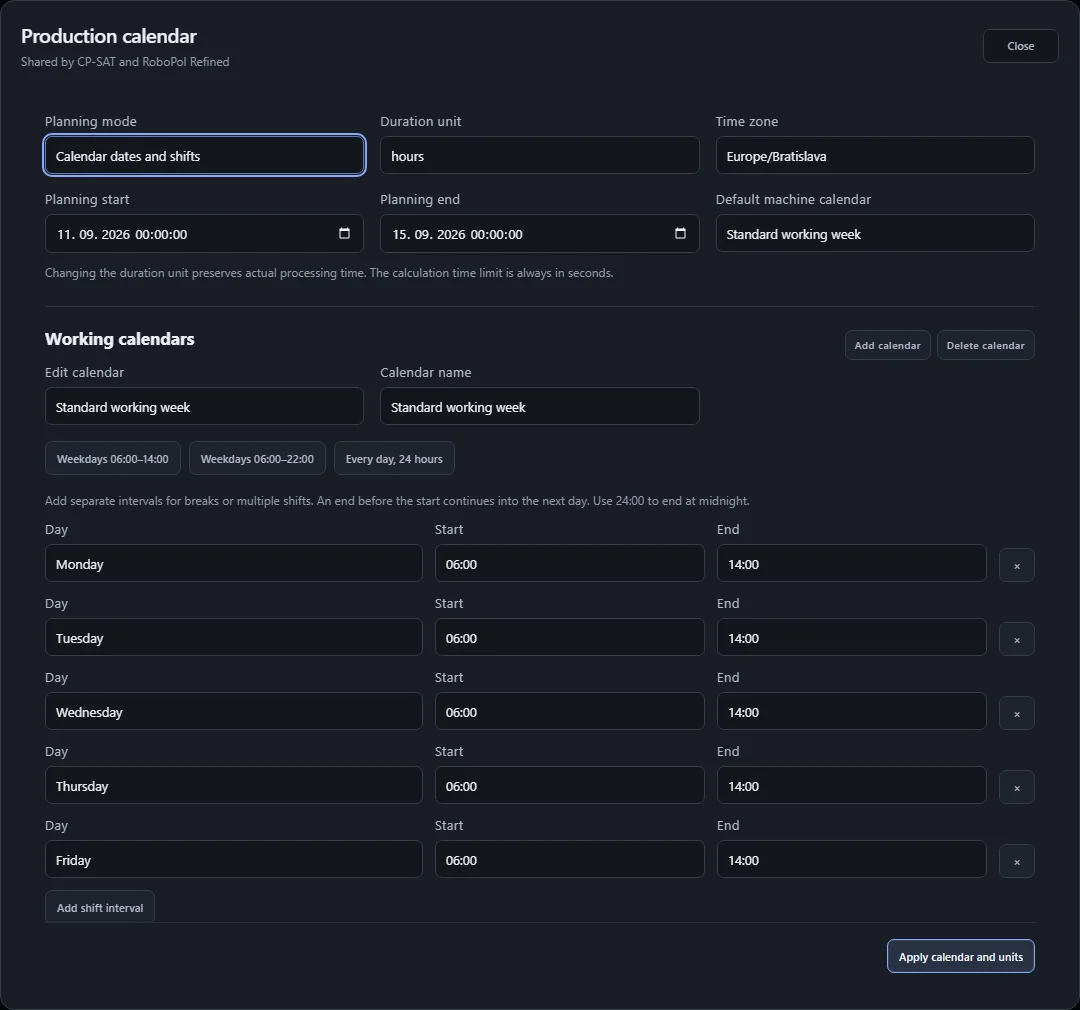
For a custom project, open Calendar & units from Dataset Editor or Production Objectives. Choose Calendar dates and shifts, the duration unit, IANA time zone, planning start and planning end. Both CP-SAT and RoboPol Refined use these settings during optimization. Old projects keep relative time until you enable calendar planning.
- Create a working calendar. Enter separate intervals for breaks and multiple shifts. A shift such as
22:00–06:00continues into the following day;00:00–24:00means a full day. - Select the default project calendar. In Machines, assign a different working calendar where needed. Date exceptions replace the whole local date; empty intervals mean a holiday, while explicit intervals allow an extra shift. Factory shutdowns apply to every machine.
- Create operation types and choose their interruption policy. Assign types in Product Routes or Generated Jobs; an individual operation may override its type.
- Set Release for material/job availability and Due for the delivery deadline. Plan-line dates are copied to generated jobs. Set Priority and choose weighted tardiness to optimize delivery performance in either solver.
| Policy | Meaning |
|---|---|
| Finish within one working interval | The entire processing duration must fit without a closure. Adjacent intervals without a gap are continuous. |
| Pause outside working hours | Work pauses during calendar closures and resumes in the next working interval. Another operation cannot occupy the machine in between. Hard maintenance cannot be crossed. |
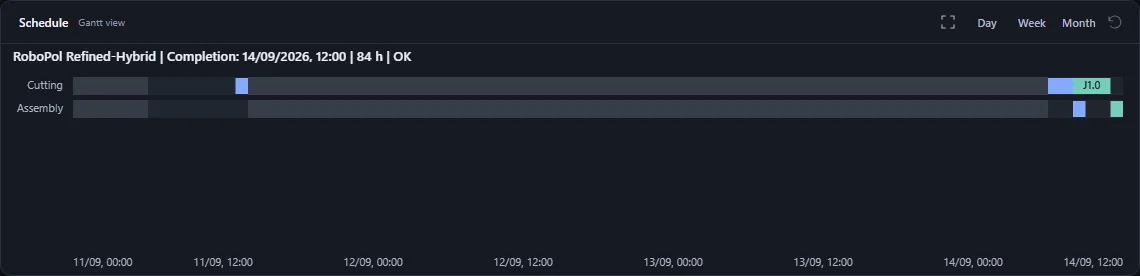
Example: the machine works Monday–Friday, 06:00–14:00. A three-hour operation released on Friday 11 September 2026 at 13:00 finishes on Monday 14 September at 09:00 with the continuous policy. With pausing enabled, it works Friday 13:00–14:00 and Monday 06:00–08:00: three hours of processing across an elapsed span of 67 hours.
The Gantt chart shows calendar dates, closed working time in grey, maintenance in its own colour and separate processing segments. Day, Week and Month change the view. Completion and durations use the result's saved time settings, so changing the current project does not move an older result.
Units and time limits: changing hours to minutes converts durations and numeric offsets without changing physical time. Calculation time limits remain seconds. Durations must resolve to whole seconds. The planning end is a hard boundary; no operation is silently placed beyond it. Calendar horizons support up to ten years, subject to available memory and model complexity.
Priorities: both solvers minimize Σ priority × max(0, completion − due). Missing deadlines contribute no penalty; past deadlines stay overdue. Priorities support three decimal places. A priority optimum may have a longer makespan. Refined uses this objective for seeds, search, repairs, bounds, optimum validation and Stop. A zero weighted penalty is optimal. CP-SAT receives a validated initial production plan when one is available, so it can return a feasible starting plan while still searching for improvements.
Calendar makespan and bounds: makespan measures elapsed time from planning start, including nights, weekends and closures. Both methods strengthen its lower bound using each machine's processing load and actual open capacity after maintenance. Gap compares the result with the strongest proven bound in the same time basis. Exact equality proves a makespan optimum; this capacity bound is never used as a weighted-tardiness penalty. Valid saved results with complete input snapshots are checked again when opened.
Dates and daylight saving: shifts follow the named time zone. Nonexistent local times must be corrected. When a job date occurs twice after a clock change, choose its first or second occurrence. Explicit-offset ISO timestamps are also supported in JSON/CSV.
Files and generated factories: project JSON stores calendars, exceptions, types, dates, units and saved run snapshots. Section CSVs carry time_unit, date columns and calendar/type references; import full project JSON to transfer definitions. Schedule CSV adds absolute start/end dates, time-zone context, processing/elapsed durations and processing segments. Random Factory can inherit the current calendar and units and records the generation settings.
Výrobné dátumy, smeny a priority
Vo vlastnom projekte otvorte Kalendár a jednotky v editore dát alebo pri výrobných cieľoch. Vyberte Kalendárne dátumy a smeny, jednotku trvania, časové pásmo IANA, začiatok a koniec plánovania. CP-SAT aj RoboPol Refined tieto nastavenia používajú priamo pri optimalizácii. Staršie projekty si zachovajú relatívny čas, kým kalendárny režim nezapnete.
- Vytvorte pracovný kalendár. Prestávky a viacero smien zadávajte samostatnými intervalmi. Smena
22:00–06:00pokračuje do ďalšieho dňa;00:00–24:00znamená celý deň. - Vyberte predvolený kalendár projektu. Jednotlivým strojom môžete priradiť iný kalendár. Výnimka nahradí celý miestny dátum: prázdne intervaly znamenajú voľno a zadané intervaly umožnia mimoriadnu smenu. Celozávodné odstávky platia pre všetky stroje.
- Vytvorte typy operácií a nastavte pravidlo prerušenia. Typ priraďte v produktovej trase alebo v generovaných zákazkách. Jednotlivá operácia môže pravidlo svojho typu prepísať.
- Nastavte Uvoľnenie podľa dostupnosti zákazky alebo materiálu a Termín podľa dodania. Dátumy riadku výrobného plánu sa prenesú do vygenerovaných zákaziek. Pre optimalizáciu termínov v ktoromkoľvek riešiči nastavte prioritu a zvoľte vážené omeškanie.
| Pravidlo | Význam |
|---|---|
| Dokončiť v jednom pracovnom intervale | Celé trvanie práce sa musí zmestiť bez prerušenia. Nadväzujúce intervaly bez prestávky tvoria súvislý pracovný čas. |
| Prerušiť mimo pracovného času | Operácia sa preruší počas uzavretia kalendára a pokračuje v ďalšom pracovnom intervale. Medzitým stroj nemôže obsadiť iná operácia. Neprekročiteľnú údržbu nemožno preklenúť. |
Príklad: stroj pracuje pondelok až piatok od 06:00 do 14:00. Trojhodinová operácia uvoľnená v piatok 11. septembra 2026 o 13:00 sa bez prerušenia vykoná v pondelok 14. septembra od 06:00 do 09:00. Pri povolenom prerušení pracuje v piatok 13:00–14:00 a v pondelok 06:00–08:00: tri hodiny práce počas celkového rozpätia 67 hodín.
Ganttov diagram zobrazuje kalendárne dátumy, sivý čas mimo smeny, samostatnú farbu údržby a jednotlivé úseky práce. Pohľad prepnete tlačidlami Deň, Týždeň a Mesiac. Dátum dokončenia aj trvanie vychádzajú z uloženého časového nastavenia výsledku; úprava aktuálneho projektu preto neposunie starší výsledok.
Jednotky a limity: zmena hodín na minúty prepočíta trvania aj číselné časové posuny bez zmeny skutočného času. Limit výpočtu zostáva v sekundách. Trvania musia zodpovedať celým sekundám. Koniec plánovania je pevná hranica; operácie sa za ňu potichu neposúvajú. Kalendárny horizont môže mať najviac desať rokov, pričom využiteľný rozsah závisí aj od pamäte a zložitosti modelu.
Priority: oba riešiče minimalizujú Σ priorita × max(0, dokončenie − termín). Chýbajúci termín nepridáva penalizáciu a minulý termín zostáva omeškaný. Priorita podporuje tri desatinné miesta. Optimálne riešenie podľa priorít môže mať dlhší makespan. Refined používa tento cieľ pri počiatočných riešeniach, vyhľadávaní, opravách, dolných hraniciach, overení optima aj Stop. Nulová vážená penalizácia je optimálna. CP-SAT dostane overený počiatočný výrobný plán, keď ho možno zostaviť, a môže ho vrátiť ako prípustný výsledok počas ďalšieho hľadania zlepšení.
Kalendárny makespan a spodná hranica: makespan je uplynutý čas od začiatku plánovania vrátane nocí, víkendov a odstávok. Obe metódy posilňujú jeho spodnú hranicu podľa objemu práce každého stroja a skutočne dostupného času po odpočítaní údržby. Medzera sa počíta voči najsilnejšej dokázanej hranici v rovnakej časovej mierke. Presná zhoda dokazuje optimum makespanu; táto kapacitná hranica sa nepoužíva ako penalizácia váženého omeškania. Pri otvorení uložených výsledkov s úplnými vstupmi sa ich platnosť a hranica opäť overia.
Dátumy a zmena času: smeny sa riadia zvoleným časovým pásmom. Neexistujúci miestny čas treba opraviť. Ak sa dátum zákazky pri posune hodín vyskytne dvakrát, vyberte prvý alebo druhý výskyt. JSON a CSV podporujú aj čas ISO s výslovným posunom voči UTC.
Súbory a generované fabriky: projekt JSON ukladá kalendáre, výnimky, typy, dátumy, jednotky aj snímky uložených behov. CSV sekcií prenáša time_unit, dátumové stĺpce a odkazy na kalendáre či typy; ich definície preneste úplným projektom JSON. CSV harmonogramu obsahuje absolútne začiatky a konce, časové pásmo, čas práce, celkové rozpätie a pracovné úseky. Random Factory môže prevziať aktuálny kalendár a jednotky a uloží nastavenia generovania.
Produktionsdaten, Schichten und Prioritäten
Öffnen Sie in einem eigenen Projekt Kalender und Einheiten im Dateneditor oder unter Produktionsziele. Wählen Sie Kalenderdaten und Schichten, Zeiteinheit, IANA-Zeitzone, Planungsbeginn und Planungsende. CP-SAT und RoboPol Refined berücksichtigen diese Angaben während der Optimierung. Bestehende Projekte behalten relative Zeiten, bis Sie den Kalendermodus aktivieren.
- Erstellen Sie einen Arbeitskalender. Erfassen Sie Pausen und mehrere Schichten als getrennte Intervalle.
22:00–06:00reicht in den Folgetag;00:00–24:00bezeichnet einen ganzen Tag. - Wählen Sie den Standardkalender des Projekts und bei Bedarf abweichende Kalender einzelner Maschinen. Datumsausnahmen ersetzen den gesamten lokalen Tag: leere Intervalle bedeuten arbeitsfrei, eingetragene Intervalle ermöglichen Zusatzschichten. Betriebsstillstände gelten für alle Maschinen.
- Definieren Sie Vorgangstypen mit einer Unterbrechungsregel und weisen Sie diese Produktabläufen oder generierten Jobs zu. Einzelne Vorgänge dürfen die Typregel überschreiben.
- Tragen Sie Freigabe für die Job-/Materialverfügbarkeit und Fälligkeit für den Liefertermin ein. Daten aus Planzeilen werden in generierte Jobs übernommen. Für terminorientierte Planung wählen Sie bei einem der beiden Solver die gewichtete Terminverspätung und passende Prioritäten.
| Regel | Bedeutung |
|---|---|
| Innerhalb eines Arbeitsintervalls abschließen | Die gesamte Bearbeitung muss ohne Schließzeit hineinpassen. Direkt angrenzende Intervalle bilden zusammenhängende Arbeitszeit. |
| Außerhalb der Arbeitszeit pausieren | Die Arbeit pausiert während Kalenderschließzeiten und wird im nächsten Arbeitsintervall fortgesetzt. Dazwischen darf kein anderer Vorgang die Maschine belegen. Sperrende Wartung darf nicht überspannt werden. |
Beispiel: Eine Maschine arbeitet Montag bis Freitag von 06:00 bis 14:00. Ein dreistündiger Vorgang wird am Freitag, 11. September 2026, um 13:00 freigegeben. Ohne Unterbrechung läuft er am Montag, 14. September, von 06:00 bis 09:00. Mit Pausen arbeitet er Freitag 13:00–14:00 und Montag 06:00–08:00: drei Stunden Bearbeitung innerhalb einer Zeitspanne von 67 Stunden.
Das Gantt-Diagramm zeigt Kalenderdaten, geschlossene Zeiten in Grau, Wartung in eigener Farbe und getrennte Bearbeitungsabschnitte. Tag, Woche und Monat wechseln die Ansicht. Fertigstellung und Dauer verwenden die gespeicherten Zeiteinstellungen des Ergebnisses; spätere Projektänderungen verschieben ältere Ergebnisse nicht.
Einheiten und Grenzen: Der Wechsel von Stunden zu Minuten rechnet Dauern und numerische Zeitabstände physikalisch unverändert um. Berechnungszeitlimits bleiben Sekunden. Dauern müssen ganzen Sekunden entsprechen. Das Planungsende ist eine feste Grenze. Kalenderhorizonte reichen bis zehn Jahre; Speicherbedarf und Modellkomplexität begrenzen die praktisch nutzbare Größe.
Prioritäten: Beide Solver minimieren Σ Priorität × max(0, Fertigstellung − Fälligkeit). Fehlende Termine verursachen keine Strafe; vergangene Termine bleiben überfällig. Prioritäten unterstützen drei Nachkommastellen. Das Prioritätsoptimum kann einen längeren Makespan haben. Refined verwendet dieses Ziel bei Startlösungen, Suche, Reparaturen, Schranken, Optimalitätsprüfung und Stop. Eine gewichtete Strafe von null ist optimal. CP-SAT erhält einen geprüften Anfangsplan, sofern einer konstruiert werden kann, und kann ihn während der weiteren Verbesserung als zulässiges Ergebnis zurückgeben.
Kalender-Makespan und untere Schranke: Der Makespan ist die verstrichene Zeit ab Planungsbeginn, einschließlich Nächten, Wochenenden und Schließzeiten. Beide Verfahren berücksichtigen die Arbeitslast jeder Maschine und ihre nach Wartungen verfügbare Kapazität. Die Lücke verwendet die stärkste nachgewiesene Schranke auf derselben Zeitbasis. Exakte Gleichheit beweist das Makespan-Optimum; diese Kapazitätsschranke wird nicht als gewichtete Verspätungsstrafe verwendet. Gespeicherte Ergebnisse mit vollständigen Eingaben werden beim Öffnen erneut geprüft.
Zeitzonen: Schichten folgen der gewählten Zone. Nicht existierende Ortszeiten müssen korrigiert werden. Bei doppelt vorkommenden Jobzeiten wählen Sie das erste oder zweite Vorkommen. JSON/CSV akzeptieren auch ISO-Zeitstempel mit explizitem UTC-Versatz.
Dateien und Zufallsfabriken: Projekt-JSON speichert Kalender, Ausnahmen, Typen, Daten, Einheiten und Ergebnisstände. Abschnitts-CSV enthält time_unit, Datumsspalten und Kalender-/Typreferenzen; Definitionen übertragen Sie mit vollständigem Projekt-JSON. Zeitplan-CSV ergänzt absolute Beginn-/Enddaten, Zeitzone, Bearbeitungs-/Gesamtdauern und Bearbeitungsabschnitte. Random Factory kann den aktuellen Kalender und die Einheiten übernehmen und speichert seine Generierungseinstellungen.
Random Factory
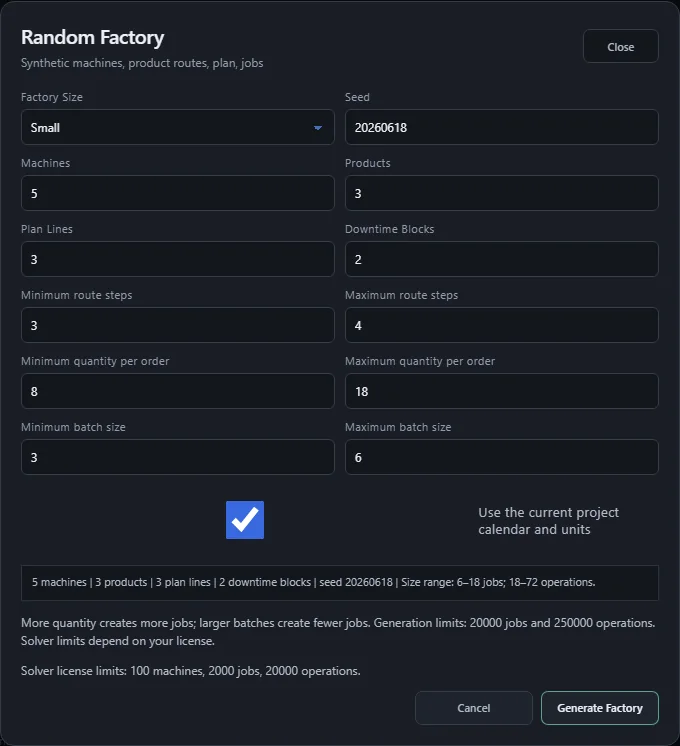
Choose Dataset → Random Factory, select a preset, and adjust its values if needed. Changing the preset fills the size, route, quantity, batch and downtime fields; the seed stays unchanged. Click Generate Factory to replace the current dataset with the generated project. Generation does not start an optimization run.
Factory sizes and generated workload
| Preset | Machines | Products | Plan lines | Jobs | Operations |
|---|---|---|---|---|---|
| Small | 5 | 3 | 3 | 12 | 39 |
| Medium | 7 | 5 | 5 | 21 | 92 |
| Large | 9 | 7 | 7 | 35 | 168 |
| Industrial | 32 | 24 | 48 | 529 | 6 320 |
| Huge | 128 | 96 | 192 | 4 170 | 97 952 |
| Mega factory | 256 | 128 | 256 | 3 362 | 105 813 |
Examples generated with seed 20260618 and unchanged preset values. Job and operation counts depend on the seed and settings. These counts describe datasets, not solver results or measured optimization speed.
Control the actual workload
More machines do not automatically create more jobs. Increase plan lines or quantity to generate more jobs; increase route length to add operations per job. Larger batches reduce the number of jobs. For example, an order for 25 pieces with a batch size of 10 creates three jobs (10, 10 and 5 pieces). A four-step route therefore creates 12 operations across those jobs.
Generation limits and solver license limits
The preview shows conservative lower and upper bounds, not an exact prediction. Its upper bound must fit 20000 jobs and 250000 operations. If it exceeds either limit, generation is disabled: reduce plan lines, maximum quantity or maximum route length, or increase the minimum batch size. The Solver license limits line separately shows the machine, job and operation limits for the current license. A generated project may exceed those solver limits; generating it does not increase the licensed calculation capacity. Large job lists show 100 jobs per page, with Previous and Next controls.
| Field | Meaning |
|---|---|
| Factory Size | Preset for a Small, Medium, Large, Industrial, Huge, or Mega factory synthetic production project. The preset fills sensible defaults. |
| Seed | Deterministic generator seed. The same settings and seed recreate the same factory structure. |
| Machines | Number of factory resources. The UI accepts 2 to 256. |
| Products | Number of product routes. The UI accepts 1 to 256. |
| Plan Lines | Number of production order lines. The UI accepts 1 to 1000. |
| Downtime Blocks | Number of generated hard downtime windows. The UI accepts 0 to eight blocks per machine (2048 at 256 machines). |
| Minimum / Maximum route steps | Operations per product route, from 1 up to the number of machines. The maximum must be at least the minimum. |
| Minimum / Maximum quantity per order | Pieces per production order, from 1 to 10000. The maximum must be at least the minimum. |
| Minimum / Maximum batch size | Pieces per job, from 1 to 10000. The final batch may contain fewer pieces. The maximum must be at least the minimum. |
| Generate Factory | Creates machines, product routes, production plan lines, downtime, and Generated Jobs in one step. |
Náhodná výroba
Otvorte Údaje → Náhodná výroba, vyberte predvoľbu a podľa potreby upravte jej hodnoty. Zmena predvoľby vyplní veľkosť výroby, postupy, množstvá, dávky a odstávky; seed zostane nezmenený. Kliknutím na Generovať výrobu nahradíte aktuálny dataset vygenerovaným projektom. Generovanie nespúšťa optimalizáciu.
Veľkosti fabrík a rozsah vygenerovaných údajov
| Predvoľba | Stroje | Produkty | Riadky plánu | Zákazky | Operácie |
|---|---|---|---|---|---|
| Malá | 5 | 3 | 3 | 12 | 39 |
| Stredná | 7 | 5 | 5 | 21 | 92 |
| Veľká | 9 | 7 | 7 | 35 | 168 |
| Priemyselná | 32 | 24 | 48 | 529 | 6 320 |
| Obrovská | 128 | 96 | 192 | 4 170 | 97 952 |
| Megafabrika | 256 | 128 | 256 | 3 362 | 105 813 |
Príklady vygenerované so seedom 20260618 a nezmenenými hodnotami predvolieb. Počty zákaziek a operácií závisia od seedu a nastavení. Ide o veľkosti datasetov, nie o výsledky solverov ani o nameranú rýchlosť optimalizácie.
Ako nastaviť skutočný rozsah výroby
Viac strojov automaticky neznamená viac zákaziek. Väčší počet riadkov plánu alebo vyššie množstvo vytvorí viac zákaziek; dlhší postup pridá operácie do každej zákazky. Väčšie dávky počet zákaziek znižujú. Napríklad objednávka na 25 kusov s dávkou 10 kusov vytvorí tri zákazky (10, 10 a 5 kusov). Pri štvorstupňovom postupe tak vznikne spolu 12 operácií.
Limity generovania a licenčné limity výpočtu
Náhľad zobrazuje dolnú a hornú hranicu počtov, nie presnú predpoveď. Horná hranica musí zostať do 20000 zákaziek a 250000 operácií. Pri prekročení ktoréhokoľvek limitu sa generovanie zablokuje: znížte počet riadkov plánu, maximálne množstvo alebo maximálnu dĺžku postupu, prípadne zvýšte minimálnu veľkosť dávky. Riadok Limity výpočtu podľa licencie samostatne zobrazuje povolené počty strojov, zákaziek a operácií pre aktuálnu licenciu. Vygenerovaný projekt môže tieto limity prekročiť; jeho vytvorenie nezvyšuje licencovanú kapacitu výpočtu. Veľké zoznamy zobrazujú 100 zákaziek na stránku s ovládaním Predchádzajúce a Nasledujúce.
| Pole | Význam |
|---|---|
| Veľkosť výroby | Predvoľba pre malý, stredný, veľký, priemyselný alebo obrovský projekt či megafabriku. Predvoľba vyplní rozumné hodnoty. |
| Seed | Deterministický seed generátora. Rovnaké nastavenia a seed vytvoria rovnakú štruktúru fabriky. |
| Stroje | Počet výrobných zdrojov. UI povoľuje 2 až 256. |
| Produkty | Počet produktových postupov. UI povoľuje 1 až 256. |
| Riadky plánu | Počet riadkov výrobného plánu. UI povoľuje 1 až 1000. |
| Bloky odstávok | Počet vygenerovaných tvrdých odstávok. UI povoľuje 0 až osem blokov na stroj (2048 pri 256 strojoch). |
| Minimum / Maximum krokov postupu | Počet operácií v postupe produktu, od 1 po počet strojov. Maximum musí byť aspoň také veľké ako minimum. |
| Minimálne / Maximálne množstvo na objednávku | Počet kusov vo výrobnej objednávke, od 1 do 10000. Maximum musí byť aspoň také veľké ako minimum. |
| Minimálna / Maximálna veľkosť dávky | Počet kusov v jednej zákazke, od 1 do 10000. Posledná dávka môže obsahovať menej kusov. Maximum musí byť aspoň také veľké ako minimum. |
| Generovať výrobu | V jednom kroku vytvorí stroje, produktové postupy, riadky plánu, odstávky a generované zákazky. |
Zufallsfabrik
Öffnen Sie Datensatz → Zufallsfabrik, wählen Sie ein Preset und passen Sie dessen Werte bei Bedarf an. Ein Presetwechsel füllt Größe, Arbeitspläne, Mengen, Lose und Stillstände aus; der Seed bleibt unverändert. Mit Fabrik generieren ersetzen Sie den aktuellen Datensatz durch das erzeugte Projekt. Die Generierung startet keine Optimierung.
Fabrikgrößen und erzeugter Arbeitsumfang
| Preset | Maschinen | Produkte | Planzeilen | Jobs | Operationen |
|---|---|---|---|---|---|
| Klein | 5 | 3 | 3 | 12 | 39 |
| Mittel | 7 | 5 | 5 | 21 | 92 |
| Groß | 9 | 7 | 7 | 35 | 168 |
| Industriefabrik | 32 | 24 | 48 | 529 | 6 320 |
| Riesig | 128 | 96 | 192 | 4 170 | 97 952 |
| Megafabrik | 256 | 128 | 256 | 3 362 | 105 813 |
Beispiele mit Seed 20260618 und unveränderten Presetwerten. Job- und Operationszahlen hängen von Seed und Einstellungen ab. Dies sind Datensatzgrößen, keine Solver-Ergebnisse oder gemessenen Optimierungsgeschwindigkeiten.
Den tatsächlichen Arbeitsumfang steuern
Mehr Maschinen erzeugen nicht automatisch mehr Jobs. Mehr Planzeilen oder höhere Mengen erzeugen mehr Jobs; längere Arbeitspläne erhöhen die Operationszahl pro Job. Größere Lose reduzieren die Jobanzahl. Ein Auftrag über 25 Stück mit Losgröße 10 erzeugt beispielsweise drei Jobs (10, 10 und 5 Stück). Bei vier Arbeitsschritten entstehen insgesamt 12 Operationen.
Generierungslimits und Solver-Lizenzlimits
Die Vorschau zeigt Unter- und Obergrenzen, keine exakte Vorhersage. Die Obergrenze muss innerhalb von 20000 Jobs und 250000 Operationen bleiben. Bei Überschreitung eines Limits wird die Generierung deaktiviert: Reduzieren Sie Planzeilen, maximale Menge oder maximale Arbeitsplanlänge, oder erhöhen Sie die minimale Losgröße. Die Zeile Solver-Lizenzlimits zeigt separat die Maschinen-, Job- und Operationslimits der aktuellen Lizenz. Ein erzeugtes Projekt kann diese Solver-Limits überschreiten; die Generierung erhöht die lizenzierte Berechnungskapazität nicht. Große Listen zeigen 100 Jobs pro Seite mit den Schaltflächen Zurück und Weiter.
| Feld | Bedeutung |
|---|---|
| Fabrikgröße | Preset für ein kleines, mittleres, großes, industrielles oder riesiges Projekt bzw. eine Megafabrik. Das Preset füllt sinnvolle Standardwerte. |
| Seed | Deterministischer Generator-Seed. Gleiche Einstellungen und gleicher Seed erzeugen dieselbe Fabrikstruktur. |
| Maschinen | Anzahl der Fertigungsressourcen. Die UI akzeptiert 2 bis 256. |
| Produkte | Anzahl der Produktarbeitspläne. Die UI akzeptiert 1 bis 256. |
| Planzeilen | Anzahl der Produktionsplanzeilen. Die UI akzeptiert 1 bis 1000. |
| Stillstandsblöcke | Anzahl der erzeugten harten Stillstandsfenster. Die UI akzeptiert 0 bis acht Blöcke pro Maschine (2048 bei 256 Maschinen). |
| Minimale / Maximale Arbeitsschritte | Operationen pro Produktarbeitsplan, von 1 bis zur Maschinenanzahl. Das Maximum muss mindestens dem Minimum entsprechen. |
| Minimale / Maximale Menge pro Auftrag | Stückzahl pro Produktionsauftrag, von 1 bis 10000. Das Maximum muss mindestens dem Minimum entsprechen. |
| Minimale / Maximale Losgröße | Stückzahl pro Job, von 1 bis 10000. Das letzte Los kann weniger Stück enthalten. Das Maximum muss mindestens dem Minimum entsprechen. |
| Fabrik generieren | Erzeugt Maschinen, Produktarbeitspläne, Planzeilen, Stillstand und generierte Jobs in einem Schritt. |
Solvers and objectives
| Choice | Status | Meaning |
|---|---|---|
| Robopol Refined / Normal | Recommended quick practical run | Heuristic production scheduling path for fast practical makespan optimization. |
| Robopol Refined / Strong | Manual use only | Deeper search profile. It can cost more CPU time and should not be used accidentally. |
| Robopol Refined / Custom | Advanced | Enables manual search settings plus a Custom solve goal for fixed budget or bounded optimum search. |
| CP-SAT | Exact solver path | Constraint-programming solver with a time limit. Supports makespan and weighted tardiness. |
| Makespan | Default | Minimizes the final completion time of the whole schedule. |
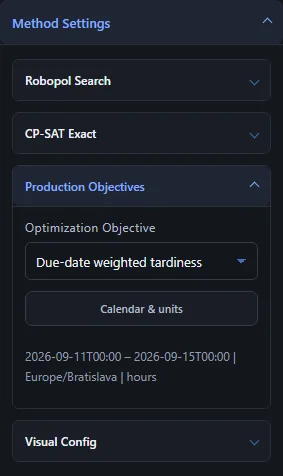
| Due-date weighted tardiness | CP-SAT and Refined | Penalizes late jobs by priority in both CP-SAT and RoboPol Refined. |
Makespan objective
Makespan minimizes the final completion time of the full schedule. It is the default and is supported by Robopol Refined and CP-SAT. Use it when the main question is: "How soon can the whole production batch finish?"
Due-date weighted tardiness in both solvers
Due-date weighted tardiness is for planning against delivery deadlines. For each job, the app calculates
tardiness = max(0, completion_time - due_time). The weighted penalty is
priority * tardiness. Both solvers minimize the sum of these weighted penalties.
This is a different objective from makespan. A weighted-tardiness run may finish the whole schedule later than the best makespan run
if that order reduces late-job penalties. For example, a makespan-optimal schedule can finish at time 261, while a
weighted-tardiness schedule can finish at time 304 because it moves priority jobs closer to their due times.
OPTIMAL or FEASIBLE always refers to the selected objective, not to every metric shown on the card.
- Choose CP-SAT or RoboPol Refined-Hybrid.
- Choose Optimization Objective = Due-date weighted tardiness.
- Set Due and Priority in Production Plan or Generated Jobs.
- Jobs without due time do not add tardiness penalty.
- Priority defaults to
1. A job with priority2makes one minute of lateness twice as expensive as priority1. - The Gantt map still shows the schedule and makespan; Run Outputs additionally show objective value, weighted tardiness, total tardiness, late jobs, and worst lateness when available.
Refined optimizes the selected objective throughout its search and preserves its best complete result when stopped.
Riešiče a ciele
| Voľba | Stav | Význam |
|---|---|---|
| Robopol Refined / Normálny | Odporúčaný rýchly praktický beh | Heuristická výrobná cesta pre rýchlu praktickú optimalizáciu makespanu. |
| Robopol Refined / Silný | Iba ručne | Hlbší profil vyhľadávania. Môže stáť viac CPU času a nemá sa spúšťať náhodne. |
| Robopol Refined / Vlastný | Pokročilé | Umožní ručne meniť vyhľadávacie nastavenia a zvoliť cieľ Vlastného profilu: pevný budget alebo ohraničené hľadanie optima. |
| CP-SAT | Exaktná cesta riešenia | Constraint-programming riešič s časovým limitom. Podporuje makespan aj vážené omeškanie podľa termínu. |
| Makespan | Predvolené | Minimalizuje koncový čas celého harmonogramu. |
| Vážené omeškanie podľa termínu | CP-SAT aj Refined | Penalizuje omeškané zákazky podľa priority v CP-SAT aj RoboPol Refined. |
Makespan cieľ
Makespan minimalizuje finálny čas dokončenia celého harmonogramu. Je to predvolený cieľ a podporuje ho Robopol Refined aj CP-SAT. Použite ho vtedy, keď hlavná otázka je: „Kedy vieme dokončiť celú výrobnú dávku?“
Vážené omeškanie podľa termínu v oboch riešičoch
Vážené omeškanie podľa termínu slúži na plánovanie voči termínom dodania. Pre každú zákazku aplikácia počíta
tardiness = max(0, completion_time - due_time). Vážená penalizácia je
priority * tardiness. Oba riešiče minimalizujú súčet týchto vážených penalizácií.
Je to iný cieľ ako makespan. Beh s cieľom váženého omeškania môže dokončiť celý harmonogram neskôr než najlepší makespan beh,
ak tým zníži penalizáciu omeškaných zákaziek. Napríklad harmonogram optimálny na makespan môže skončiť v čase 261,
zatiaľ čo harmonogram optimalizovaný na termíny môže skončiť v čase 304, pretože posunie prioritné zákazky bližšie k ich termínom.
OPTIMAL alebo FEASIBLE sa vždy vzťahuje na zvolený cieľ, nie na každú metriku zobrazenú na karte.
- Zvoľte CP-SAT alebo RoboPol Refined-Hybrid.
- Zvoľte Optimalizačný cieľ = Vážené omeškanie podľa termínu.
- Nastavte Termín a Priorita vo výrobnom pláne alebo v generovaných zákazkách.
- Zákazky bez termínu nepridávajú penalizáciu omeškania.
- Priorita má predvolenú hodnotu
1. Zákazka s prioritou2robí jednu minútu omeškania dvakrát drahšou než priorita1. - Ganttov diagram stále ukazuje harmonogram a makespan; výstupy behov navyše ukazujú hodnotu cieľa, vážené omeškanie, celkové omeškanie, oneskorené zákazky a najhoršie omeškanie, keď sú dostupné.
Refined počas celého hľadania optimalizuje zvolený cieľ a pri zastavení zachová svoj najlepší úplný výsledok.
Solver und Ziele
| Auswahl | Status | Bedeutung |
|---|---|---|
| Robopol Refined / Normal | Empfohlener schneller Praxislauf | Heuristischer Produktionsplanungsweg für schnelle praktische Makespan-Optimierung. |
| Robopol Refined / Stark | Nur bewusst verwenden | Tieferes Suchprofil. Es kann mehr CPU-Zeit kosten und sollte nicht versehentlich gestartet werden. |
| Robopol Refined / Benutzerdefiniert | Fortgeschritten | Ermöglicht manuelle Sucheinstellungen plus ein Ziel für festen Budgetlauf oder begrenzte Optimumsuche. |
| CP-SAT | Exakter Solver-Weg | Constraint-programming Solver mit Zeitlimit. Unterstützt Makespan und gewichtete Terminverspätung. |
| Makespan | Standardziel | Minimiert die finale Fertigstellungszeit des gesamten Plans. |
| Gewichtete Terminverspätung | CP-SAT und Refined | Penalisiert verspätete Jobs nach Priorität in beiden Solvern. |
Makespan-Ziel
Makespan minimiert die endgültige Fertigstellungszeit des gesamten Plans. Es ist das Standardziel und wird von Robopol Refined und CP-SAT unterstützt. Verwende es, wenn die Hauptfrage lautet: „Wie früh kann der gesamte Produktionsauftrag fertig werden?“
Gewichtete Terminverspätung in beiden Solvern
Gewichtete Terminverspätung plant gegen Liefertermine. Für jeden Job berechnet die Anwendung
tardiness = max(0, completion_time - due_time). Die gewichtete Strafe ist
priority * tardiness. Beide Solver minimieren die Summe dieser gewichteten Strafen.
Das ist ein anderes Ziel als Makespan. Ein Lauf mit gewichteter Terminverspätung kann den Gesamtplan später abschließen als der beste Makespan-Lauf,
wenn dadurch die Strafe für verspätete Jobs sinkt. Ein makespan-optimaler Plan kann zum Beispiel bei Zeit 261 enden,
während ein nach Terminen optimierter Plan bei Zeit 304 endet, weil wichtige Jobs näher an ihre Fälligkeit geschoben werden.
OPTIMAL oder FEASIBLE bezieht sich immer auf das gewählte Ziel, nicht auf jede Metrik auf der Karte.
- Wähle CP-SAT oder RoboPol Refined-Hybrid.
- Wähle Optimierungsziel = Gewichtete Terminverspätung.
- Setze Fällig und Priorität im Produktionsplan oder in den generierten Jobs.
- Jobs ohne Termin erzeugen keine Verspätungsstrafe.
- Priorität hat den Standardwert
1. Ein Job mit Priorität2macht eine Minute Verspätung doppelt so teuer wie Priorität1. - Die Gantt-Karte zeigt weiterhin Plan und Makespan; Laufausgaben zeigen zusätzlich Zielwert, gewichtete Terminverspätung, Gesamtverspätung, verspätete Jobs und schlimmste Verspätung, wenn diese Werte verfügbar sind.
Refined optimiert durchgehend das gewählte Ziel und behält bei Stop sein bestes vollständiges Ergebnis.
Algorithms
CP-SAT
CP-SAT is the exact/constraint-programming solver path. It builds a mathematical scheduling model with job order constraints, machine no-overlap constraints, and hard downtime intervals. The main user parameter is CP-SAT time limit (seconds).
- A short limit gives a fast answer, useful for quick checks or smaller datasets.
- A longer limit gives CP-SAT more time to improve the schedule or prove optimality.
- If the result is OPTIMAL, CP-SAT proved that no better solution exists for the selected objective.
- If the result is FEASIBLE, CP-SAT found a valid schedule but did not prove it is the best possible inside the time limit.
- For CP-SAT, both Makespan and Due-date weighted tardiness are supported.
Increase the CP-SAT time limit when the project is larger, due-date weighted tardiness is selected, many downtime windows exist, or the gap/bound information suggests that CP-SAT may still improve the result.
Robopol Refined
RoboPol Refined-Hybrid combines the generic Refined search core with a JSSP adapter and a native CP-SAT worker. CP-SAT supplies initial schedules and assists selected reseeding and repair steps; the adapter validates candidates and the Refined core coordinates the search. Normal uses four runs, while Strong and a new Custom profile use eight. Runtime depends on the instance and selected settings.
Normal, Strong and Custom use the same hybrid scheduling policy for every dataset size. Profiles control search effort; the selected CPU budget is shared by Refined and CP-SAT. New best schedules and proven global bounds are reflected in the result, including after Stop.
The scheduler uses Robopol Refined as a universal guided-search core connected through a JSSP adapter. The core provides the search machinery; the adapter describes the scheduling state, score, moves, and guidance edges for this production-planning domain. More background is available on TSP and Universal Robopol Refined Solver.
| Profile | Meaning |
|---|---|
| Normal | Tuned 4-run efficiency profile for everyday planning. Use this first when response time matters. |
| Strong | Tuned 8-run quality profile with the same efficient search shape, a larger elite archive, and broader native seed/recombination support. |
| Custom | Starts from the tuned 8-run values and is intended for manual tuning. Saved Custom values are stored in this browser after Save Custom Parameters. |
Refined reports the strongest proven lower bound from the full problem, including CP-SAT seeds and continuous search. When a schedule reaches that bound, the optimum is proven and search ends. Near the bound, or after sustained stagnation, a short CP-SAT check asks whether any shorter schedule exists. If none exists, Refined proves the optimum and stops; if a better schedule is found, it is used. An inconclusive check leaves the result unproven and search continues within the remaining budget.
Robopol Refined parameters
| Field | What it changes | Practical effect |
|---|---|---|
| Refined time limit (seconds) | Time budget for the whole Refined search, including CP-SAT assistance. Available in Normal, Strong and Custom. | Enter 1–86400 seconds, or 0 to use the profile budget without an extra time limit. The value is saved automatically across all Refined profiles. The best complete schedule is returned when the budget ends; proof or profile completion can end the run sooner. Finishing an active search step and returning the result may take a little extra time. |
| Number of Runs | Independent search runs with different seeds. | More runs improve diversity and chance of a better schedule, but increase CPU time. |
| Active Basins / Beam | How many promising schedule regions are kept during the search. | Higher values explore wider; lower values focus faster. |
| ILS Iterations | Main improvement depth for each run. | Higher values allow more improvement cycles but take longer. |
| No Improvement Limit | Number of non-improving iterations before escape logic is triggered. The hybrid scheduler may trigger it earlier based on elapsed time. | Higher values allow more iterations before diversification; elapsed-time triggers remain active. |
| Kick Strength | How strongly the schedule is perturbed when stuck. | Higher values jump farther but can disturb good structure. |
| LS Budget / ILS Layer | Local-search work spent on promising candidates and final polishing. | Higher values spend more time improving each candidate. |
| Basin Acceptance Threshold | Allowed near-best tolerance when exploring neighboring basins. | Higher tolerance explores more alternatives; lower tolerance is stricter. |
| Exact Repair Budget Hint | Repair effort budget for escape candidates when exact repair is used internally. | Higher values may repair harder candidates but cost more time. |
| Exact Repair | Enables exact repair candidates in Custom mode. | Can improve repair quality on hard candidates, but it costs additional search time. |
| Scout Candidates / Basin | Candidate moves generated from each active basin. | More candidates improve coverage but increase evaluation work. |
| Guidance Edges / Op | How much learned move/edge guidance is kept per operation. | Higher values keep broader search memory. |
| Scout Budget | Cheap pre-evaluation work before intensifying candidates. | Higher values spend more time filtering promising candidates. |
| Guidance Reorder Period | Legacy compatibility field. The current core orders guidance for each new state; this value does not affect the search. | — |
| Parallel Runs | Whether independent runs execute concurrently. | Faster wall-clock time on the local CPU, with more simultaneous CPU usage. |
For normal production use, start with Normal. Use Strong when you explicitly want the larger 8-run quality budget. Use Custom when you are tuning a known dataset and can compare the results against previous schedules. In Custom mode, the user can adjust search parameters to trade calculation time for result quality: more runs, deeper ILS, wider candidate scouting, and parallel runs can improve the chance of a better makespan, but they also use more CPU time. Unsaved Custom edits affect the current run only; press Save Custom Parameters to load them again after the next browser reload.
For factories with thousands of operations, one search iteration can take much longer. More runs and deeper local search do not guarantee a better schedule within the same time. Compare profiles using the same dataset, CPU budget and elapsed time. Stop returns the best complete schedule found so far; it does not by itself prove optimality.
Algoritmy
CP-SAT
CP-SAT je exaktná/constraint-programming cesta riešenia. Vytvorí matematický model plánovania s poradím operácií v zákazkách, obmedzeniami bez prekryvu na strojoch a tvrdými odstávkami. Hlavný používateľský parameter je Časový limit CP-SAT (sekundy).
- Krátky limit dá rýchlu odpoveď, vhodnú pre rýchlu kontrolu alebo menšie datasety.
- Dlhší limit dá CP-SAT viac času na zlepšenie harmonogramu alebo dôkaz optimality.
- Ak je výsledok OPTIMAL, CP-SAT dokázal, že pre zvolený cieľ neexistuje lepšie riešenie.
- Ak je výsledok FEASIBLE, CP-SAT našiel platný harmonogram, ale v časovom limite nedokázal, že je najlepší možný.
- Pre CP-SAT sú podporované ciele Makespan aj Vážené omeškanie podľa termínu.
Časový limit CP-SAT zvýš vtedy, keď je projekt väčší, je zvolené vážené omeškanie podľa termínu, existuje veľa odstávok, alebo gap/bound naznačuje, že CP-SAT ešte môže výsledok zlepšiť.
Robopol Refined
RoboPol Refined-Hybrid spája všeobecné vyhľadávacie jadro Refined, adaptér JSSP a natívny CP-SAT worker. CP-SAT pripravuje počiatočné harmonogramy a pomáha pri dopĺňaní riešení a vybraných opravách. Adaptér overuje kandidátov a jadro Refined riadi vyhľadávanie. Normálny profil používa štyri behy, Silný a nový Vlastný profil osem. Čas výpočtu závisí od údajov a nastavení.
Normálny, Silný a Vlastný profil používajú rovnaké riadenie hybridného výpočtu pri každej veľkosti údajov. Profily určujú rozsah vyhľadávania; zvolený CPU rozpočet si delia Refined a CP-SAT. Výsledok zachováva nové najlepšie harmonogramy a preukázané globálne hranice aj po zastavení.
Scheduler používa Robopol Refined ako univerzálne guided-search jadro napojené cez JSSP adaptér. Jadro rieši samotný search mechanizmus; adaptér popisuje stav plánovacej úlohy, skóre, povolené ťahy a guidance edges pre výrobnú doménu. Širší kontext je na stránke TSP a univerzálny Robopol Refined solver.
| Profil | Význam |
|---|---|
| Normálny | Vyladený efektívny profil so 4 behmi pre bežné plánovanie. Začni ním, keď záleží na čase odozvy. |
| Silný | Vyladený kvalitnejší profil s 8 behmi, rovnakým efektívnym tvarom hľadania, väčším elite archívom a širšou podporou natívnych seedov a rekombinácie. |
| Vlastný | Štartuje z vyladených hodnôt pre 8 behov a slúži na ručné ladenie. Uložené vlastné hodnoty ostanú v tomto prehliadači po stlačení Uložiť vlastné parametre. |
Refined uvádza najsilnejšiu dokázanú spodnú hranicu pre celú úlohu vrátane hraníc z CP-SAT seedov a priebežného vyhľadávania. Keď ju harmonogram dosiahne, optimum je preukázané a výpočet sa ukončí. Pri malej medzere alebo dlhšej stagnácii krátka kontrola cez CP-SAT preverí, či existuje kratší harmonogram. Ak neexistuje, Refined preukáže optimum a skončí; ak sa nájde lepší harmonogram, prevezme ho. Nerozhodná kontrola optimum nepotvrdí a vyhľadávanie pokračuje v zostávajúcom rozpočte.
Parametre Robopol Refined
| Pole | Čo mení | Praktický efekt |
|---|---|---|
| Časový limit Refined (sekundy) | Časový rozpočet celého vyhľadávania Refined vrátane pomoci CP-SAT. Dostupný pre Normal, Silný aj Vlastný profil. | Zadajte 1–86400 sekúnd alebo 0 pre rozpočet profilu bez dodatočného časového limitu. Hodnota sa automaticky ukladá spoločne pre všetky profily Refined. Po uplynutí rozpočtu sa vráti najlepší úplný harmonogram; dôkaz optima alebo dokončenie profilu môžu beh ukončiť skôr. Dokončenie prebiehajúceho kroku a vrátenie výsledku môžu trvať o niečo dlhšie. |
| Počet behov | Nezávislé behy s rôznymi seedmi. | Viac behov zvyšuje diverzitu a šancu na lepší harmonogram, ale stojí viac CPU času. |
| Aktívne oblasti / beam | Koľko sľubných oblastí harmonogramov sa drží počas hľadania. | Vyššie hodnoty skúmajú širšie; nižšie hodnoty sa sústredia rýchlejšie. |
| ILS iterácie | Hlavná hĺbka zlepšovania pre každý beh. | Vyššie hodnoty umožnia viac zlepšovacích cyklov, ale trvajú dlhšie. |
| Limit bez zlepšenia | Počet iterácií bez zlepšenia pred zmenou oblasti vyhľadávania. Hybridné riadenie ju môže spustiť skôr podľa uplynutého času. | Vyššie hodnoty umožnia viac iterácií pred zmenou oblasti vyhľadávania; časové spúšťanie zostáva aktívne. |
| Sila perturbácie | Ako silno sa harmonogram naruší, keď sa hľadanie zasekne. | Vyššie hodnoty skočia ďalej, ale môžu narušiť dobrú štruktúru. |
| LS rozpočet / ILS vrstva | Lokálne vyhľadávanie pre sľubných kandidátov a finálne dočistenie. | Vyššie hodnoty venujú viac času zlepšeniu každého kandidáta. |
| Prah prijatia oblasti | Tolerancia riešení blízkych najlepšiemu pri skúmaní susedných oblastí. | Vyššia tolerancia skúma viac alternatív; nižšia je prísnejšia. |
| Nápoveda rozpočtu exact repair | Rozpočet opravnej práce pre únikových kandidátov, keď sa interne použije exact repair. | Vyššie hodnoty môžu opraviť ťažších kandidátov, ale stoja viac času. |
| Exact Repair | Zapne exact repair kandidátov vo Vlastnom profile. | Môže zlepšiť opravu ťažkých kandidátov, ale pridáva ďalší čas hľadania. |
| Scout kandidáti / oblasť | Kandidátne ťahy generované z každej aktívnej oblasti. | Viac kandidátov zlepšuje pokrytie, ale zvyšuje evaluačnú prácu. |
| Guidance hrany / operácia | Koľko naučeného guidance sa drží na operáciu. | Vyššie hodnoty držia širšiu pamäť vyhľadávania. |
| Scout rozpočet | Lacná predbežná evaluácia pred intenzifikáciou kandidátov. | Vyššie hodnoty venujú viac času filtrovaniu sľubných kandidátov. |
| Perióda preusporiadania guidance | Pole zachované pre staršie konfigurácie. Aktuálne jadro usporiada kandidátov pri každom novom stave; táto hodnota nemá vplyv na vyhľadávanie. | — |
| Paralelné behy | Či nezávislé behy bežia súčasne. | Rýchlejší reálny čas na serverových zdrojoch, s väčším súčasným CPU použitím. |
Pri bežnej výrobe začnite profilom Normálny. Silný použite vtedy, keď chcete vyhľadávanie rozšíriť na 8 behov. Vlastný použite pri ladení známeho datasetu, kde môžete porovnať výsledky s predchádzajúcimi harmonogramami. Vo Vlastnom režime si používateľ môže doladiť vyhľadávacie parametre podľa kvality výsledku: viac behov, hlbšie ILS, širší scouting kandidátov a paralelné behy môžu zvýšiť šancu na lepší makespan, ale stoja viac CPU času. Neuložené vlastné zmeny platia iba pre aktuálny beh; pre načítanie po ďalšom otvorení prehliadača stlačte Uložiť vlastné parametre.
Pri fabrikách s tisíckami operácií môže jedna iterácia vyhľadávania trvať výrazne dlhšie. Viac behov a hlbšie lokálne vyhľadávanie nezaručujú lepší harmonogram za rovnaký čas. Profily porovnávajte na rovnakých údajoch, s rovnakým CPU rozpočtom a časom výpočtu. Zastaviť vráti najlepší úplný harmonogram nájdený do zastavenia; samotné zastavenie nepreukazuje optimum.
Algorithmen
CP-SAT
CP-SAT ist der exakte bzw. constraint-programming-basierte Solver-Weg. Er baut ein mathematisches Planungsmodell mit Job-Reihenfolge, Nichtüberlappungsbedingungen für Maschinen und harten Stillstandsintervallen. Der wichtigste Benutzerparameter ist CP-SAT-Zeitlimit (Sekunden).
- Ein kurzes Limit liefert schnell eine Antwort, nützlich für schnelle Kontrolle oder kleinere Datensätze.
- Ein längeres Limit gibt CP-SAT mehr Zeit, den Plan zu verbessern oder Optimalität zu beweisen.
- OPTIMAL bedeutet, dass CP-SAT bewiesen hat, dass für das gewählte Ziel keine bessere Lösung existiert.
- FEASIBLE bedeutet, dass CP-SAT einen gültigen Plan gefunden hat, aber innerhalb des Limits keinen Optimalitätsbeweis liefern konnte.
- Für CP-SAT werden Makespan und Gewichtete Terminverspätung unterstützt.
Erhöhe das CP-SAT-Zeitlimit bei größeren Projekten, bei gewichteter Terminverspätung, bei vielen Stillstandsfenstern oder wenn gap/bound darauf hindeuten, dass CP-SAT das Ergebnis noch verbessern kann.
Robopol Refined
RoboPol Refined-Hybrid verbindet den generischen Refined-Suchkern, einen JSSP-Adapter und einen nativen CP-SAT-Worker. CP-SAT liefert Startzeitpläne und unterstützt ausgewählte neue Startlösungen und Reparaturen. Der Adapter prüft Kandidaten, der Refined-Kern koordiniert die Suche. Normal nutzt vier Läufe, Stark und ein neues benutzerdefiniertes Profil acht. Die Laufzeit hängt von Instanz und Einstellungen ab.
Normal, Stark und Benutzerdefiniert verwenden für jede Datensatzgröße dieselbe hybride Suchsteuerung. Die Profile bestimmen den Suchaufwand; Refined und CP-SAT teilen sich das gewählte CPU-Budget. Neue beste Zeitpläne und nachgewiesene globale Schranken bleiben auch nach Stopp im Ergebnis erhalten.
Der Scheduler nutzt Robopol Refined als universelles Guided-Search-Kernsystem, das über einen JSSP-Adapter angebunden ist. Der Kern stellt die Suche bereit; der Adapter beschreibt Zustand, Bewertung, erlaubte Züge und Guidance Edges für diese Produktionsplanungsdomäne. Mehr Hintergrund steht auf TSP and Universal Robopol Refined Solver.
| Profil | Bedeutung |
|---|---|
| Normal | Abgestimmtes Effizienzprofil mit 4 Läufen für die tägliche Planung. Damit beginnen, wenn Antwortzeit wichtig ist. |
| Stark | Abgestimmtes Qualitätsprofil mit 8 Läufen, derselben effizienten Suchform, größerem Elite-Archiv und breiterer Unterstützung für native Seeds und Rekombination. |
| Benutzerdefiniert | Startet mit den abgestimmten Werten für 8 Läufe und ist für manuelles Tuning gedacht. Gespeicherte Werte bleiben nach Benutzerdefinierte Parameter speichern in diesem Browser. |
Refined meldet die stärkste nachgewiesene untere Schranke für das gesamte Problem, einschließlich CP-SAT-Seeds und laufender Suche. Erreicht ein Plan diese Schranke, ist das Optimum bewiesen und die Suche endet. Bei kleiner Lücke oder längerer Stagnation prüft CP-SAT kurz, ob ein kürzerer Plan existiert. Falls nicht, bestätigt Refined das Optimum und stoppt; ein besserer Plan wird übernommen. Eine ergebnislose Prüfung bestätigt keine Optimalität, und die Suche läuft innerhalb des verbleibenden Budgets weiter.
Robopol Refined Parameter
| Feld | Was es ändert | Praktischer Effekt |
|---|---|---|
| Refined-Zeitlimit (Sekunden) | Zeitbudget für die gesamte Refined-Suche einschließlich CP-SAT-Unterstützung. Für Normal, Stark und Benutzerdefiniert verfügbar. | 1–86400 Sekunden eingeben, oder 0 für das Profilbudget ohne zusätzliches Zeitlimit. Der Wert wird automatisch für alle Refined-Profile gespeichert. Nach Ablauf wird der beste vollständige Plan zurückgegeben; ein Nachweis oder das Profilende können den Lauf früher beenden. Der Abschluss eines laufenden Suchschritts und die Rückgabe können etwas länger dauern. |
| Anzahl Läufe | Unabhängige Suchläufe mit unterschiedlichen Seeds. | Mehr Läufe erhöhen Vielfalt und Chance auf einen besseren Plan, kosten aber mehr CPU-Zeit. |
| Aktive Becken / Beam | Anzahl vielversprechender Planbereiche, die während der Suche gehalten werden. | Höhere Werte suchen breiter; niedrigere Werte fokussieren schneller. |
| ILS-Iterationen | Haupttiefe der Verbesserung pro Lauf. | Höhere Werte erlauben mehr Verbesserungszyklen, dauern aber länger. |
| Limit ohne Verbesserung | Anzahl der Iterationen ohne Verbesserung vor einem Suchgebietswechsel. Die hybride Steuerung kann ihn abhängig von der verstrichenen Zeit früher auslösen. | Höhere Werte erlauben mehr Iterationen vor der Diversifikation; zeitabhängige Auslöser bleiben aktiv. |
| Kick-Stärke | Stärke der Störung, wenn die Suche steckenbleibt. | Höhere Werte springen weiter, können aber gute Struktur stören. |
| LS-Budget / ILS-Ebene | Lokale Sucharbeit für Kandidaten und finale Verbesserung. | Höhere Werte investieren mehr Zeit in jeden Kandidaten. |
| Annahmeschwelle für Becken | Toleranz für nahezu beste Lösungen beim Erkunden benachbarter Bereiche. | Höhere Toleranz erkundet mehr Alternativen; niedrigere Toleranz ist strenger. |
| Budgethinweis für exakte Reparatur | Budget für Reparaturarbeit bei Ausweichkandidaten, wenn intern exakte Reparatur verwendet wird. | Höhere Werte können schwierigere Kandidaten reparieren, kosten aber mehr Zeit. |
| Exakte Reparatur | Aktiviert exakte Reparaturkandidaten im benutzerdefinierten Profil. | Kann die Reparatur schwieriger Kandidaten verbessern, kostet aber zusätzliche Suchzeit. |
| Scout-Kandidaten / Becken | Kandidatenzüge aus jedem aktiven Becken. | Mehr Kandidaten verbessern Abdeckung, erhöhen aber Bewertungsarbeit. |
| Guidance-Kanten / Operation | Wie viel gelernte Guidance pro Operation gehalten wird. | Höhere Werte halten ein breiteres Suchgedächtnis. |
| Scout-Budget | Günstige Vorbewertung vor intensiver Kandidatenprüfung. | Höhere Werte verbringen mehr Zeit mit dem Filtern vielversprechender Kandidaten. |
| Guidance-Neusortierung | Kompatibilitätsfeld für alte Konfigurationen. Der aktuelle Kern ordnet Suchhinweise bei jedem neuen Zustand; dieser Wert beeinflusst die Suche nicht. | — |
| Parallele Läufe | Ob unabhängige Läufe gleichzeitig laufen. | Kürzere reale Wartezeit auf Serverressourcen, aber höhere gleichzeitige CPU-Nutzung. |
Im normalen Produktionsbetrieb zuerst Normal verwenden. Stark wählen, wenn ausdrücklich das größere Qualitätsbudget mit 8 Läufen gewünscht ist. Benutzerdefiniert ist sinnvoll beim Tuning eines bekannten Datensatzes, dessen Ergebnisse mit früheren Plänen verglichen werden können. Im benutzerdefinierten Modus kann der Anwender Suchparameter für bessere Ergebnisqualität abstimmen: mehr Läufe, tiefere ILS-Suche, breiteres Candidate-Scouting und parallele Läufe können die Chance auf einen besseren Makespan erhöhen, benötigen aber mehr CPU-Zeit. Nicht gespeicherte benutzerdefinierte Änderungen gelten nur für den aktuellen Lauf; mit Benutzerdefinierte Parameter speichern werden sie beim nächsten Browserstart wieder geladen.
Bei Fabriken mit Tausenden von Operationen kann eine Suchiteration deutlich länger dauern. Mehr Läufe und eine tiefere lokale Suche garantieren innerhalb derselben Zeit keinen besseren Plan. Vergleichen Sie Profile mit denselben Daten, demselben CPU-Budget und derselben Laufzeit. Stopp liefert den besten bisher gefundenen vollständigen Plan; das Anhalten allein beweist keine Optimalität.
Running optimization
Basic Options
- Data source: choose Custom dataset for real production data from Dataset Editor. Choose Built-in instance only for sample benchmark-style data.
- Instance and Instance seed: used only when Built-in instance is selected.
- Algorithm: choose Robopol Refined or CP-SAT.
- Refined profile: available only for Robopol Refined. Normal is the tuned 4-run efficiency profile; Strong uses the tuned 8-run quality budget; Custom starts from the same 8-run search values with exact repair enabled and is stored only after Save Custom Parameters.
| Built-in instance | Use |
|---|---|
| Simple test (3x3) | Small sanity-check instance. |
| FT-like synthetic (6x6) - ft06 | Seeded small JSSP instance for quick CP-SAT and Robopol Refined comparison. |
| Fisher & Thompson (10x10) - ft10 | Known JSSP benchmark-style instance for solver comparison. |
| Lawrence (20x5) - la15 | Benchmark-style instance with more jobs than machines. |
| FT-like / LA-like synthetic instances | Larger synthetic examples for demonstrations and stress-style checks. |
Built-in instances do not use the Dataset Editor. Switch back to Custom dataset before solving imported or manually edited production data.
CP-SAT Exact settings
CP-SAT time limit controls how long CP-SAT may search. If it proves the best solution, the status is optimal. If it finds a good solution but cannot prove optimality inside the limit, the status can be feasible. In that case, review the objective, makespan, bound, and gap in the Run Outputs.
-
Search workers controls OR-Tools
num_workersfor standalone CP-SAT. Robopol Refined treats the same value as one solve-wide CPU budget shared by Refined runs and internal CP calls. - Search mode chooses normal Portfolio search, Interleaved search, or a Single full search worker.
- LNS, RINS / RENS, Feasibility Pump, Feasibility Jump, and Dual Scheduling are advanced CP-SAT switches exposed through backend-whitelisted parameters.
- Violation LS, FJ restart factor, Solution pool, and Alternative pool tune local-search diversity and restart behavior.
- Save CP-SAT Parameters stores the current CP-SAT settings in this browser. Unsaved edits still affect the current run but are not restored after reload.
Refined proof metadata
Robopol Refined Run Outputs can show proof_status, refined_lower_bound, and the gap to the strongest proven global bound. optimal_by_lower_bound means the Refined makespan equals the proven lower bound. optimal_by_cp_sat means that a full-model CP-SAT bound or optimality check proved the optimum. not_proven means the schedule is valid but optimality is not proven.
Buttons
- Start Optimization validates the selected dataset and starts the selected solver.
- Stop ends the active run and returns the best complete schedule found so far, if one is available.
- Clear Outputs clears visible run history and resets current displayed output.
Before pressing Start
- Dataset summary should show at least one machine, one job, and one operation.
- Validation should show a valid custom dataset when Custom dataset is selected.
- For weighted tardiness, choose either solver and set Due and Priority on the relevant jobs.
- For machine downtime, review the Gantt after solving and verify that operations do not overlap red downtime blocks.
Spustenie optimalizácie
Základné voľby
- Zdroj dát: pre reálne výrobné dáta z Editora údajov zvoľte Vlastné údaje. Vstavaná inštancia používajte iba pre ukážkové benchmark dáta.
- Inštancia a Seed inštancie: používajú sa iba pri vstavanej inštancii.
- Algoritmus: zvoľte Robopol Refined alebo CP-SAT.
- Refined profil: dostupný iba pre Robopol Refined. Normálny je vyladený efektívny profil so 4 behmi; Silný používa kvalitnejší rozpočet s 8 behmi; Vlastný štartuje z rovnakých hodnôt pre 8 behov so zapnutým exact repair a uloží sa až po stlačení Uložiť vlastné parametre.
| Vstavaná inštancia | Použitie |
|---|---|
| Simple test (3x3) | Malá sanity-check inštancia. |
| FT-like synthetic (6x6) - ft06 | Seedovaná malá JSSP inštancia na rýchle porovnanie CP-SAT a Robopol Refined. |
| Fisher & Thompson (10x10) - ft10 | Známa JSSP benchmarková inštancia pre porovnanie riešičov. |
| Lawrence (20x5) - la15 | Benchmarková inštancia s väčším počtom úloh než strojov. |
| FT-like / LA-like synthetic instances | Väčšie syntetické príklady pre ukážky a záťažovejšie kontroly. |
Vstavané inštancie nepoužívajú Editor údajov. Pred riešením importovaných alebo ručne upravených výrobných dát prepnite späť na Vlastné údaje.
CP-SAT Exact nastavenia
Časový limit CP-SAT určuje, ako dlho môže CP-SAT hľadať. Ak dokáže najlepšie riešenie, stav je optimal. Ak nájde dobré riešenie, ale v limite nedokáže optimalitu, stav môže byť feasible. Vtedy sledujte cieľ, makespan, bound a gap vo výsledkoch výpočtov.
-
Search workers nastavuje OR-Tools
num_workerspre samostatný CP-SAT. Robopol Refined používa rovnakú hodnotu ako jeden spoločný CPU rozpočet pre Refined behy a interné CP volania. - Search mode vyberá normálne Portfolio vyhľadávanie, Interleaved vyhľadávanie alebo jeden Single full search worker.
- LNS, RINS / RENS, Feasibility Pump, Feasibility Jump a Dual Scheduling sú pokročilé CP-SAT prepínače posielané cez backend whitelist.
- Violation LS, FJ restart factor, Solution pool a Alternative pool ladia diverzitu local-search a správanie reštartov.
- Save CP-SAT Parameters uloží aktuálne CP-SAT nastavenia v tomto prehliadači. Neuložené zmeny platia pre aktuálny beh, ale po reloade sa neobnovia.
Dôkazové metadáta Refined
Vo výstupoch Robopol Refined sa môžu zobraziť proof_status, refined_lower_bound a zostávajúci gap. optimal_by_lower_bound znamená, že Refined makespan sa rovná najsilnejšej dokázanej spodnej hranici. optimal_by_cp_sat znamená, že hranica z plného modelu CP-SAT alebo kontrola optimality preukázala optimum. not_proven znamená, že harmonogram je platný, ale optimalita nie je dokázaná.
Tlačidlá
- Spustiť optimalizáciu zvaliduje vybraný dataset a spustí zvolený riešič.
- Stop ukončí aktívny beh a vráti najlepší dovtedy nájdený úplný harmonogram, ak je k dispozícii.
- Vymazať výstupy vyčistí viditeľnú históriu behov a resetuje aktuálne zobrazený výstup.
Pred spustením
- Súhrn údajov má ukazovať aspoň jeden stroj, jednu zákazku a jednu operáciu.
- Validácia má pri vlastných údajoch hlásiť platný vlastný dataset.
- Pre vážené omeškanie zvoľte ktorýkoľvek riešič a zadajte termín a prioritu príslušných zákaziek.
- Pri odstávkach strojov po výpočte skontrolujte Gantt a overte, že operácie neprekrývajú červené bloky odstávok.
Optimierung starten
Grundoptionen
- Datenquelle: Für reale Produktionsdaten aus dem Datensatz-Editor Eigener Datensatz wählen. Eingebaute Instanz nur für Beispiel- und Benchmarkdaten verwenden.
- Instanz und Instanz-Seed: werden nur verwendet, wenn eingebaute Instanz ausgewählt ist.
- Algorithmus: Robopol Refined oder CP-SAT wählen.
- Refined-Profil: nur für Robopol Refined verfügbar. Normal ist das abgestimmte Effizienzprofil mit 4 Läufen; Stark nutzt das Qualitätsbudget mit 8 Läufen; Benutzerdefiniert startet mit denselben Werten für 8 Läufe und aktivierter exakter Reparatur und wird erst nach Benutzerdefinierte Parameter speichern gespeichert.
| Eingebaute Instanz | Verwendung |
|---|---|
| Simple test (3x3) | Kleine sanity-check Instanz. |
| FT-like synthetic (6x6) - ft06 | Seed-basierte kleine JSSP-Instanz für schnellen Vergleich von CP-SAT und Robopol Refined. |
| Fisher & Thompson (10x10) - ft10 | Bekannte JSSP-Benchmark-Instanz für Solver-Vergleich. |
| Lawrence (20x5) - la15 | Benchmark-Instanz mit mehr Jobs als Maschinen. |
| FT-like / LA-like synthetic instances | Größere synthetische Beispiele für Demonstration und stärkere Prüfungen. |
Eingebaute Instanzen verwenden den Datensatz-Editor nicht. Vor dem Rechnen mit importierten oder manuell bearbeiteten Produktionsdaten wieder auf Eigener Datensatz wechseln.
CP-SAT Exact Einstellungen
CP-SAT-Zeitlimit legt fest, wie lange CP-SAT suchen darf. Wenn der beste Wert bewiesen wird, ist der Status optimal. Findet CP-SAT eine gute Lösung ohne Beweis innerhalb des Limits, kann der Status feasible sein. Dann Zielwert, Makespan, Bound und Gap in den Laufausgaben prüfen.
-
Search workers setzt OR-Tools
num_workersfür eigenständiges CP-SAT. Robopol Refined verwendet denselben Wert als gemeinsames CPU-Budget für Refined-Läufe und interne CP-Aufrufe. - Search mode wählt normale Portfolio-Suche, Interleaved-Suche oder einen Single-Full-Search-Worker.
- LNS, RINS / RENS, Feasibility Pump, Feasibility Jump und Dual Scheduling sind erweiterte CP-SAT-Schalter über backend-whitelisted Parameter.
- Violation LS, FJ restart factor, Solution pool und Alternative pool steuern Local-Search-Diversität und Restart-Verhalten.
- Save CP-SAT Parameters speichert die aktuellen CP-SAT-Einstellungen in diesem Browser. Nicht gespeicherte Änderungen gelten für den aktuellen Lauf, werden nach dem Reload aber nicht wiederhergestellt.
Refined-Beweismetadaten
Robopol-Refined-Laufausgaben können proof_status, refined_lower_bound und die verbleibende Lücke anzeigen. optimal_by_lower_bound bedeutet, dass der Refined-Makespan der stärksten nachgewiesenen unteren Schranke entspricht. optimal_by_cp_sat bedeutet, dass eine Schranke des vollständigen CP-SAT-Modells oder eine Optimalitätsprüfung das Optimum bewiesen hat. not_proven bedeutet, dass der Plan gültig, aber nicht als optimal bewiesen ist.
Schaltflächen
- Optimierung starten validiert den ausgewählten Datensatz und startet den gewählten Solver.
- Stop beendet den aktiven Lauf und liefert den besten bisher gefundenen vollständigen Plan, sofern verfügbar.
- Ausgaben löschen leert die sichtbare Laufhistorie und setzt die aktuell angezeigten Ausgaben zurück.
Vor Start
- Die Datensatz-Zusammenfassung sollte mindestens eine Maschine, einen Job und eine Operation zeigen.
- Die Validierung sollte bei eigenem Datensatz einen gültigen Datensatz melden.
- Für gewichtete Terminverspätung einen der beiden Solver wählen und Fälligkeit sowie Priorität der betroffenen Jobs eintragen.
- Bei Maschinenstillstand nach der Berechnung die Gantt-Karte prüfen und sicherstellen, dass Operationen keine roten Stillstandsblöcke überlappen.
During a calculation
The Gantt area shows a moving schedule motif, the active algorithm and elapsed time. This is an activity indicator, not a percentage estimate. Stop calculation ends the search and retains the best complete schedule found so far in Gantt and Run Outputs. If no feasible schedule exists yet, the app reports that no result is available. Sound settings are in System.
Počas výpočtu
V Ganttovom diagrame sa zobrazuje animácia, aktívny algoritmus a uplynutý čas. Animácia signalizuje činnosť, nie percentuálny priebeh. Tlačidlo Zastaviť výpočet ukončí vyhľadávanie a zachová najlepší dovtedy nájdený úplný harmonogram v Ganttovom diagrame aj vo Výsledkoch výpočtov. Ak ešte neexistuje platný harmonogram, aplikácia oznámi, že výsledok nie je k dispozícii. Zvuky sa nastavujú v časti Systém.
Während einer Berechnung
Der Gantt-Bereich zeigt eine Animation, den aktiven Algorithmus und die verstrichene Zeit. Die Animation zeigt Aktivität, keinen prozentualen Fortschritt. Berechnung stoppen beendet die Suche und behält den besten bisher gefundenen vollständigen Plan in Gantt und Ergebnisverlauf. Falls noch kein zulässiger Plan vorliegt, meldet die Anwendung, dass kein Ergebnis verfügbar ist. Klangeinstellungen stehen unter System.
Gantt map
What the map shows
After a successful run, the Gantt map shows one row per machine. Colored bars are operations, red blocked areas are hard downtime windows, and the title line shows instance, solver, makespan, status, and current zoom window.
Navigation controls
| Control | Action |
|---|---|
| Mouse wheel | Zooms the time axis in or out around the pointer position. |
| Drag the map | Pans the visible time window after the map is zoomed. |
| Hover operation | Shows job, operation, machine, start time, end time and duration. All operation blocks use the same borderless style for both solvers. |
| Click operation | Selects the operation and shows its identifier, machine and time interval below the chart. Selection does not change the block border. |
| Fullscreen Gantt / EXT | Fullscreen Gantt opens the Gantt map in fullscreen. In fullscreen the button changes to EXT, which exits fullscreen. |
| Reset Gantt View | Resets zoom, pan, hover/selection state, and returns the map to the full schedule view. |
Export the map as an image
Use the project toolbar in the left Settings sidebar when you need a visual image of the calculated map.
- Run a successful calculation first. The export buttons need a drawable Gantt schedule.
- Open the Project panel in the Settings sidebar.
- Click Export PNG to download a bitmap image of the current rendered canvas view.
- Click Export SVG to download a scalable vector map of the schedule.
- The browser downloads a file named from the instance, solver, and makespan. If no schedule exists, the app warns:
Run a calculation before exporting the map.
Ganttov diagram
Čo mapa zobrazuje
Po úspešnom behu Ganttov diagram zobrazí jeden riadok na stroj. Farebné bloky sú operácie, červené bloky sú pevné odstávky a titulok ukazuje inštanciu, riešič, makespan, stav a aktuálne zoom okno.
Ovládanie mapy
| Ovládanie | Akcia |
|---|---|
| Koliesko myši | Približuje alebo odďaľuje časovú os okolo miesta, kde je kurzor. |
| Ťahanie mapy | Posúva zobrazené časové okno, keď je mapa priblížená. |
| Hover na operáciu | Zobrazí zákazku, operáciu, stroj, začiatok, koniec a trvanie. Bloky operácií majú pri oboch riešičoch rovnaký štýl bez orámovania. |
| Klik na operáciu | Vyberie operáciu a pod grafom zobrazí jej identifikátor, stroj a časový interval. Výber nemení orámovanie bloku. |
| Fullscreen Gantt / EXT | Fullscreen Gantt otvorí Gantt mapu na celú obrazovku. Vo fullscreene sa tlačidlo zmení na EXT, ktorým sa fullscreen ukončí. |
| Reset Gantt View | Resetuje zoom, posun, hover/výber a vráti mapu na celý harmonogram. |
Export mapy ako obrázok
Keď potrebuješ vizuálny obrázok vypočítanej mapy, použite panel Projekt v ľavom bočnom paneli nastavení.
- Najprv spusti úspešný výpočet. Export tlačidlá potrebujú vykresliteľný Gantt harmonogram.
- Otvorte panel Projekt v bočnom paneli nastavení.
- Kliknite Export PNG, keď chcete bitmapový obrázok aktuálne vykresleného canvas pohľadu.
- Kliknite Export SVG, keď chcete škálovateľnú vektorovú mapu harmonogramu.
- Prehliadač stiahne súbor pomenovaný podľa inštancie, riešiča a makespanu. Ak harmonogram ešte neexistuje, aplikácia upozorní:
Run a calculation before exporting the map.
Gantt-Karte
Was die Karte zeigt
Nach einem erfolgreichen Lauf zeigt die Gantt-Karte eine Zeile pro Maschine. Farbige Balken sind Operationen, rote Bereiche sind harte Stillstandsfenster, und die Titelzeile zeigt Instanz, Solver, Makespan, Status und aktuelles Zoomfenster.
Kartensteuerung
| Steuerung | Aktion |
|---|---|
| Mausrad | Zoomt die Zeitachse um die Cursorposition hinein oder heraus. |
| Karte ziehen | Verschiebt das sichtbare Zeitfenster, wenn die Karte gezoomt ist. |
| Hover über Operation | Zeigt Job, Operation, Maschine, Start, Ende und Dauer. Alle Operationsblöcke verwenden bei beiden Solvern denselben Stil ohne Umrandung. |
| Klick auf Operation | Wählt die Operation aus und zeigt Kennung, Maschine und Zeitintervall unter dem Diagramm. Die Auswahl verändert die Blockumrandung nicht. |
| Fullscreen Gantt / EXT | Fullscreen Gantt öffnet die Gantt-Karte im Vollbild. Im Vollbild wird die Schaltfläche zu EXT, womit Vollbild beendet wird. |
| Reset Gantt View | Setzt Zoom, Verschiebung, Hover/Auswahl zurück und zeigt wieder den gesamten Plan. |
Karte als Bild exportieren
Für ein visuelles Bild der berechneten Karte verwende das Panel Projekt in der linken Einstellungs-Seitenleiste.
- Zuerst eine erfolgreiche Berechnung ausführen. Die Export-Schaltflächen brauchen einen zeichnbaren Gantt-Plan.
- Das Panel Projekt in der Einstellungs-Seitenleiste öffnen.
- PNG exportieren anklicken, um ein Bitmap der aktuellen Canvas-Ansicht herunterzuladen.
- SVG exportieren anklicken, um eine skalierbare Vektorkarte des Plans herunterzuladen.
- Der Browser lädt eine Datei mit Instanz, Solver und Makespan im Namen herunter. Wenn noch kein Plan existiert, warnt die App:
Run a calculation before exporting the map.
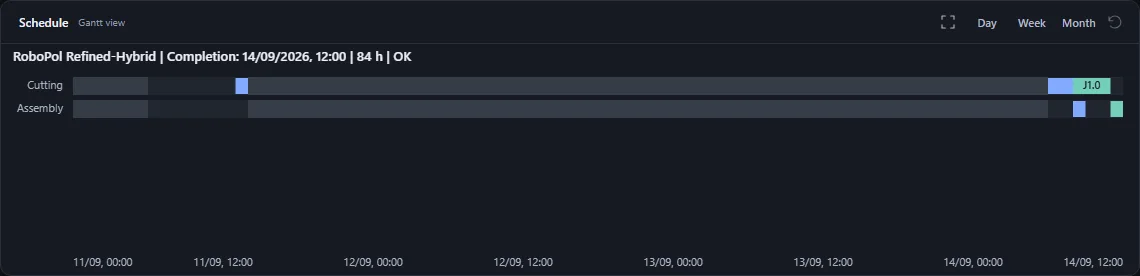
The result screenshot uses an archived FT15 calculation: CP-SAT, OPTIMAL, makespan 1153. Snímka výsledku používa archivovaný výpočet FT15: CP-SAT, OPTIMAL, makespan 1153. Der Ergebnis-Screenshot zeigt eine archivierte FT15-Berechnung: CP-SAT, OPTIMAL, Makespan 1153.
Run outputs and proof of optimality
Stopping CP-SAT or RoboPol Refined-Hybrid: Stop ends the search and returns the best complete schedule found so far. It appears in Gantt and Run Outputs with status STOPPED, algorithm, makespan, objective, strongest available bound and proof metadata. CP-SAT finishes cancellation before returning its result. Search statistics may be incomplete. If you stop before the first feasible schedule, the app reports that no result is available. Stopping alone does not prove optimality; an existing proof is preserved.
Each Run Outputs card identifies its algorithm, instance, objective, makespan and calculation time. Each card shows an Optimum proven or Optimum not proven notice without opening the summary. Lower bound and gap are displayed when available.
| Result | Interpretation |
|---|---|
| CP-SAT: OPTIMAL | Optimum proven for the selected objective. |
| CP-SAT: FEASIBLE | A valid schedule was found; optimality is not proven. |
| Refined: optimal_by_lower_bound | The final makespan reaches the proven lower bound. |
| Refined: optimal_by_cp_sat | The integrated CP-SAT stage proved optimality. |
| Refined: not_proven or OK alone | A completed run is not an optimality certificate. |
| Older validator records | Stored validation details are retained. Finding a better schedule does not prove that the previous incumbent was optimal. |
A displayed gap of 0%, equality with another run, or status OK alone must not be treated as proof. The proof notice follows the result metadata.
| Action | Use |
|---|---|
| Copy | Copies a text summary of run history. |
| Export → JSON / CSV | Opens the schedule export dialog for the current successful schedule. JSON preserves metadata and operation details; CSV contains summary, operation and downtime rows. |
| summary | Expands the detailed result, including available Refined and validation information. |
| Clear Outputs | Clears visible history and resets the current result. |
| Save As | Saves the project with available schedule and run-history state so it can be restored later. |
For a chart image, use Project → Export PNG / Export SVG. Exports require a license that includes export access.
Výsledky výpočtov a dôkaz optima
Zastavenie CP-SAT alebo RoboPol Refined-Hybrid: Stop ukončí vyhľadávanie a vráti najlepší dovtedy nájdený úplný harmonogram. Zobrazí sa v Ganttovom diagrame aj vo Výsledkoch výpočtov so stavom STOPPED (ZASTAVENÉ), algoritmom, makespanom, hodnotou cieľa, najsilnejšou dostupnou hranicou a údajmi o dôkaze optima. CP-SAT pred vrátením výsledku dokončí zastavenie výpočtu. Štatistiky môžu byť neúplné. Ak zastavíte výpočet pred prvým platným harmonogramom, aplikácia oznámi, že výsledok ešte nie je k dispozícii. Samotné zastavenie optimum nepreukazuje; už získaný dôkaz zostáva zachovaný.
Každá karta v časti Výsledky výpočtov uvádza algoritmus, inštanciu, cieľ, makespan a čas výpočtu. Na každej karte je bez rozbalenia súhrnu viditeľné Optimum preukázané alebo Optimum nepreukázané. Ak sú dostupné, zobrazia sa aj dolná hranica a odchýlka.
| Výsledok | Význam |
|---|---|
| CP-SAT: OPTIMAL | Optimum je preukázané pre zvolený cieľ. |
| CP-SAT: FEASIBLE | Existuje platný harmonogram, ale optimum nie je preukázané. |
| Refined: optimal_by_lower_bound | Výsledný makespan dosiahol dokázanú dolnú hranicu. |
| Refined: optimal_by_cp_sat | Integrovaná časť CP-SAT preukázala optimum. |
| Refined: not_proven alebo samotné OK | Dokončený výpočet nie je dôkazom optimality. |
| Staršie záznamy validátora | Uložené podrobnosti validácie zostávajú zachované. Nájdenie lepšieho harmonogramu nepotvrdzuje optimum predchádzajúceho riešenia. |
Samotná odchýlka 0 %, zhoda s iným výpočtom ani stav OK nie sú dôkazom optima. Označenie dôkazu vychádza z metadát výsledku.
| Akcia | Použitie |
|---|---|
| Kopírovať | Skopíruje textový súhrn histórie výpočtov. |
| Export → JSON / CSV | Otvorí dialóg exportu aktuálneho úspešného harmonogramu. JSON zachová metadáta a operácie; CSV obsahuje súhrnné riadky, operácie a odstávky. |
| súhrn | Rozbalí podrobnosti výsledku vrátane dostupných údajov Refined a validácie. |
| Vymazať výstupy | Vymaže viditeľnú históriu a resetuje aktuálny výsledok. |
| Uložiť ako | Uloží projekt aj s dostupným harmonogramom a históriou výpočtov na neskoršie obnovenie. |
Obrázok diagramu získate cez Projekt → Export PNG / Export SVG. Export vyžaduje licenciu s príslušným oprávnením.
Ergebnisse und Optimalitätsnachweis
CP-SAT oder RoboPol Refined-Hybrid stoppen: Stop beendet die Suche und gibt den besten bisher gefundenen vollständigen Plan zurück. Er erscheint in Gantt und den Laufausgaben mit Status STOPPED (GESTOPPT), Algorithmus, Makespan, Zielwert, stärkster verfügbarer Schranke und Optimalitätsnachweis. CP-SAT schließt den Abbruch vor der Rückgabe ab. Suchstatistiken können unvollständig sein. Beim Stoppen vor dem ersten zulässigen Plan meldet die Anwendung, dass noch kein Ergebnis verfügbar ist. Stoppen allein beweist keine Optimalität; ein bereits vorhandener Nachweis bleibt erhalten.
Jede Karte unter Run Outputs nennt Algorithmus, Instanz, Ziel, Makespan und Berechnungszeit. Auf jeder Karte steht Optimum nachgewiesen oder Optimum nicht nachgewiesen, ohne die Zusammenfassung zu öffnen. Untere Schranke und Lücke erscheinen, sofern verfügbar.
| Ergebnis | Bedeutung |
|---|---|
| CP-SAT: OPTIMAL | Das Optimum für das gewählte Ziel ist nachgewiesen. |
| CP-SAT: FEASIBLE | Ein gültiger Zeitplan wurde gefunden; die Optimalität ist nicht nachgewiesen. |
| Refined: optimal_by_lower_bound | Der endgültige Makespan erreicht die nachgewiesene untere Schranke. |
| Refined: optimal_by_cp_sat | Die integrierte CP-SAT-Stufe hat die Optimalität nachgewiesen. |
| Refined: not_proven oder nur OK | Eine abgeschlossene Berechnung ist noch kein Optimalitätsnachweis. |
| Ältere Validierungsdaten | Gespeicherte Prüfinformationen bleiben erhalten. Ein besserer Zeitplan beweist nicht die Optimalität der vorherigen Lösung. |
Eine angezeigte Lücke von 0 %, Gleichheit mit einem anderen Lauf oder der Status OK allein sind kein Beweis. Der Nachweis folgt den Ergebnis-Metadaten.
| Aktion | Verwendung |
|---|---|
| Kopieren | Kopiert eine Textzusammenfassung des Berechnungsverlaufs. |
| Export → JSON / CSV | Öffnet den Exportdialog für den aktuellen erfolgreichen Zeitplan. JSON enthält Metadaten und Operationen; CSV enthält Zusammenfassungs-, Operations- und Stillstandszeilen. |
| Zusammenfassung | Zeigt weitere Ergebnisdetails einschließlich vorhandener Refined- und Validierungsinformationen. |
| Ausgaben löschen | Löscht den sichtbaren Verlauf und setzt das aktuelle Ergebnis zurück. |
| Speichern unter | Speichert das Projekt mit vorhandenem Zeitplan und Verlauf zur späteren Wiederherstellung. |
Diagrammbilder erhalten Sie über Projekt → PNG exportieren / SVG exportieren. Exporte erfordern eine entsprechende Lizenzberechtigung.

Appearance and chart readability
The application has one consistent design with Light and Dark modes. Switch them above Settings in the left panel. Your choice is remembered; the Gantt palette follows the selected mode.
| Control | Effect |
|---|---|
| Light / Dark | Changes the complete interface and chart palette. The same visual system is used in both modes. |
| Operation Height | Changes Gantt bar height between 8 and 32 pixels. Larger schedules may need smaller bars to fit the visible area. |
| Grid Density | Changes the background grid density in the empty Gantt view. |
| Skip animation on large schedules | Disables the calculation animation. The operating-system reduced-motion preference is also respected. |
Chart sizing and animation options are under Method Settings → Visual Config. PNG exports capture the current rendered view; SVG exports use the selected palette.
Vzhľad a čitateľnosť diagramu
Aplikácia používa jednotný dizajn s režimami Svetlá a Tmavá. Prepínajú sa nad nastaveniami v ľavom paneli. Voľba sa zapamätá a prispôsobí sa jej aj farebnosť Ganttovho diagramu.
| Ovládanie | Účinok |
|---|---|
| Svetlá / Tmavá | Zmení celé rozhranie aj paletu diagramu. Pôvodné farebné témy nahradili tieto dva režimy. |
| Výška operácie | Nastaví výšku blokov od 8 do 32 pixelov. Pri väčšom harmonograme môžu byť bloky menšie, aby sa zmestili na plochu. |
| Hustota mriežky | Zmení hustotu mriežky pozadia v prázdnom Ganttovom diagrame. |
| Preskočiť animáciu pri veľkých plánoch | Vypne animáciu výpočtu. Aplikácia rešpektuje aj systémové nastavenie obmedzenia pohybu. |
Veľkosť blokov a animáciu nájdete v časti Nastavenia metódy → Vizuálne nastavenia. Export PNG zachytí aktuálne zobrazenie; export SVG používa zvolenú paletu.
Darstellung und Lesbarkeit
Die Anwendung hat ein einheitliches Design mit Hell und Dunkel. Der Umschalter steht über den Einstellungen im linken Panel. Die Auswahl wird gespeichert; die Gantt-Palette passt sich an.
| Bedienelement | Wirkung |
|---|---|
| Hell / Dunkel | Ändert die gesamte Oberfläche und die Diagrammpalette. Die früheren Farbvorlagen wurden durch diese zwei Modi ersetzt. |
| Operationshöhe | Stellt die Balkenhöhe zwischen 8 und 32 Pixeln ein. Große Zeitpläne können kleinere Balken benötigen, um in die Ansicht zu passen. |
| Rasterdichte | Ändert das Hintergrundraster der leeren Gantt-Ansicht. |
| Animation bei großen Plänen überspringen | Deaktiviert die Berechnungsanimation. Die Systemeinstellung für reduzierte Bewegung wird ebenfalls berücksichtigt. |
Balkengröße und Animation finden Sie unter Methodeneinstellungen → Visuelle Einstellungen. PNG exportiert die aktuelle Ansicht, SVG verwendet die gewählte Palette.
Current scope
- Objectives: CP-SAT and Refined support makespan and weighted tardiness.
- Machine alternatives: the current dataset model uses one fixed machine per operation. Alternative-machine routing is planned as a later production-planning layer.
- Calendars: recurring shifts, date exceptions, releases, hard maintenance and per-type interruption policies are supported in both solvers.
- Production controls: use Calendar & units and job/plan priorities. Calendar time units are independent of the calculation time limit.
- Locks and setup: imported numeric locked starts are honored. Sequence-dependent setup times and arbitrary preemption are outside the current model.
Aktuálny rozsah
- Ciele: CP-SAT aj Refined podporujú makespan a vážené omeškanie.
- Alternatívne stroje: aktuálny dátový model používa jeden pevný stroj pre operáciu. Alternatívne routovanie strojov je plánovaná ďalšia vrstva výrobného plánovania.
- Smenné kalendáre: oba riešiče podporujú opakované smeny, výnimky, uvoľnenie zákaziek, údržbu a prerušenie podľa typu operácie.
- Výrobné nastavenia: použite Kalendár a jednotky a priority zákaziek/plánu. Časový limit výpočtu zostáva v sekundách.
- Uzamknutie a nastavenie: importované číselné uzamknuté začiatky sa rešpektujú. Nastavovacie časy závislé od poradia a ľubovoľné prerušovanie nie sú súčasťou modelu.
Aktueller Umfang
- Ziele: CP-SAT und Refined unterstützen Makespan und gewichtete Terminverspätung.
- Alternative Maschinen: Das aktuelle Datenmodell verwendet eine feste Maschine pro Operation. Alternative Maschinenrouten sind als spätere Produktionsplanungsebene vorgesehen.
- Kalender: Beide Solver unterstützen wiederkehrende Schichten, Ausnahmen, Freigaben, Wartungen und typspezifische Unterbrechungen.
- Produktionseinstellungen: Verwenden Sie Kalender und Einheiten sowie Job-/Planprioritäten. Berechnungszeitlimits bleiben Sekunden.
- Sperren und Rüsten: Importierte numerische Startfixierungen werden berücksichtigt. Reihenfolgeabhängige Rüstzeiten und beliebige Unterbrechungen sind nicht Teil des Modells.
Troubleshooting
| Symptom | Check |
|---|---|
| No jobs in the dataset | Add jobs manually or generate them from the production plan. Products alone are not solver input. |
| Local service unavailable | Restart the installed desktop application. Opening the HTML file alone is insufficient. |
| Refined-Hybrid requires its native CP-SAT worker | Repair or reinstall the desktop package. The kernel, CP-SAT worker and runtime libraries must all be present. |
| Unexpected Demo license | Start the installed desktop launcher under the Windows user who activated the license, then check System → License Key. |
| OPTIMAL versus FEASIBLE or OK | Read the proof notice and result metadata; a completed calculation need not be optimal. |
| Export unavailable | A successful schedule and the appropriate export entitlement are required. |
| Fullscreen or reset icon disabled | Fullscreen needs a drawable schedule. Reset becomes active after zooming, panning or selecting an operation. |
| No sound | Check Sound ON, volume above zero and browser/OS audio settings. Use Preview sound after interacting with the page. |
Riešenie problémov
| Príznak | Čo skontrolovať |
|---|---|
| V údajoch nie sú zákazky | Pridajte zákazky ručne alebo ich vygenerujte z výrobného plánu. Samotné produkty ešte nie sú vstupom riešiča. |
| Lokálna služba nie je dostupná | Znova spustite nainštalovanú desktopovú aplikáciu. Samotné otvorenie HTML nestačí. |
| Refined-Hybrid vyžaduje natívny CP-SAT worker | Opravte alebo znova nainštalujte desktopový balík. Musí obsahovať jadro, CP-SAT worker aj potrebné knižnice. |
| Neočakávaná licencia Demo | Spustite desktopový spúšťač pod používateľom Windows, ktorý licenciu aktivoval. Skontrolujte Systém → Licenčný kľúč. |
| OPTIMAL oproti FEASIBLE alebo OK | Sledujte označenie dôkazu a metadáta výsledku. Dokončený výpočet nemusí byť optimálny. |
| Export nie je dostupný | Je potrebný úspešný harmonogram a licencia s oprávnením na export. |
| Ikona celej obrazovky alebo resetu je neaktívna | Celá obrazovka vyžaduje zobraziteľný harmonogram. Reset sa aktivuje po priblížení, posune alebo výbere operácie. |
| Nie je počuť zvuk | Skontrolujte zapnutý zvuk, nenulovú hlasitosť a zvuk v prehliadači a systéme. Po interakcii so stránkou použite Prehrať ukážku. |
Fehlerbehebung
| Symptom | Prüfung |
|---|---|
| Keine Jobs im Datensatz | Fügen Sie Jobs hinzu oder erzeugen Sie sie aus dem Produktionsplan. Produkte allein sind noch keine Solver-Eingabe. |
| Lokaler Dienst nicht erreichbar | Starten Sie die installierte Desktop-Anwendung erneut. Die HTML-Datei allein reicht nicht aus. |
| Refined-Hybrid benötigt seinen nativen CP-SAT-Worker | Reparieren oder installieren Sie das Desktop-Paket neu. Kern, CP-SAT-Worker und Bibliotheken müssen vorhanden sein. |
| Unerwartete Demo-Lizenz | Starten Sie den Desktop-Starter unter dem Windows-Benutzer der Aktivierung und prüfen Sie System → Lizenzschlüssel. |
| OPTIMAL gegenüber FEASIBLE oder OK | Beachten Sie den Nachweis und die Metadaten. Eine abgeschlossene Berechnung muss nicht optimal sein. |
| Export nicht verfügbar | Ein erfolgreicher Zeitplan und die passende Exportberechtigung sind erforderlich. |
| Vollbild- oder Zurücksetzen-Symbol deaktiviert | Vollbild benötigt einen darstellbaren Zeitplan. Zurücksetzen wird nach Zoom, Verschieben oder Operationsauswahl aktiv. |
| Kein Ton | Prüfen Sie Ton an, eine Lautstärke über null und die Audioeinstellungen von Browser und System. Verwenden Sie nach einer Seiteninteraktion Klang testen. |